
Using the Surround Audio Downmixer
The surround audio downmixer is only available in the Source-Nexus Review plugin. It is not available in the Source-Nexus Review standalone application.
The Surround Audio Downmixer, available in Source-Nexus Review 1.6.0 or newer, lets you take a surround or immersive mix and create a stereo or binaural monitor stream in real time, so remote reviewers can listen over the Source-Nexus Gateway, Zoom, Google Meet, or another stereo-only review platform.
Use this feature when the session mix is larger than stereo, but the people reviewing the mix are listening through headphones, laptop speakers, or a standard stereo conferencing application. The downmixer allows the review stream to remain easy to route while still giving the engineer control over how the surround channels are represented.
What the downmixer does
The downmixer converts supported surround formats, such as 5.1, 7.1, 7.1.2, and 9.1.6, into a stereo or binaural output that can be sent to your remote review path. This avoids the need for external downmixing hardware or complicated DAW routing just to make a surround mix available to stereo listeners.
You can use one of the built-in downmix presets for a fast setup, or adjust the downmix manually when the review stream needs a more specific balance.
Common review workflows
The Surround Audio Downmixer is useful for re-recording mixers working on film and television projects, immersive audio producers creating Dolby Atmos or spatial audio music, QC engineers checking downmix translation, and game audio designers reviewing complex multi-channel environments with remote teams.
- Immersive mix review: an Atmos, 7.1, or other immersive-session engineer can host a remote review while clients listen on standard headphones. A binaural renderer can provide a more immersive headphone experience over a regular stereo stream.
- Stereo compatibility check: switch between the original surround session and the processed downmix to confirm that the stereo fold-down keeps the mix balanced and avoids phase problems before delivery.
- Remote collaboration: use the Source-Nexus Gateway, Zoom, Google Meet, or another stereo-only platform to review surround content with collaborators who do not have a surround-capable monitoring setup.
Choosing a rendering mode
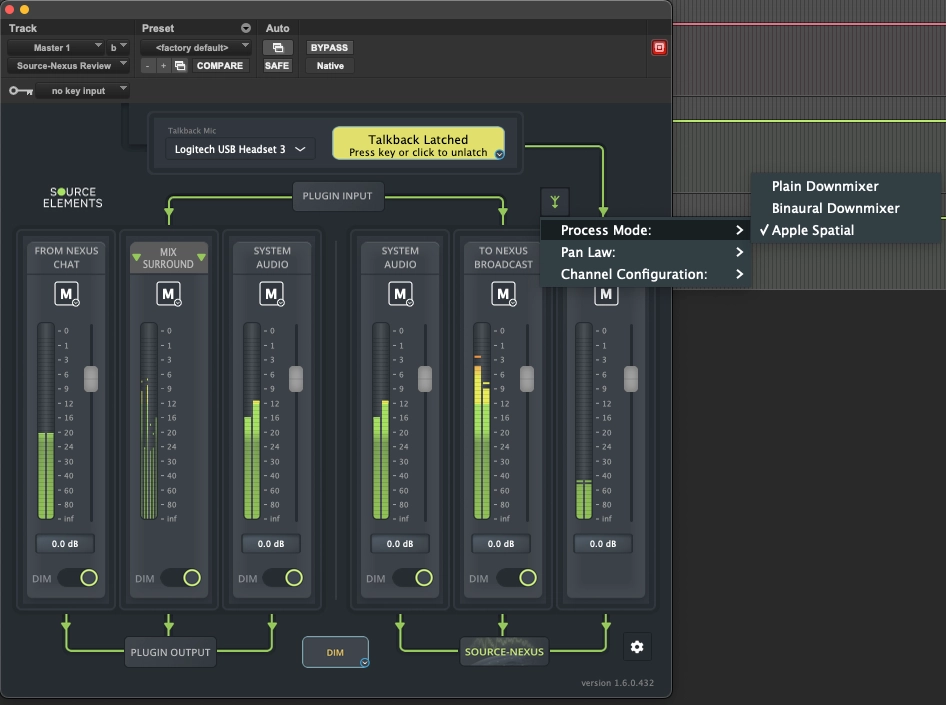
The downmixer settings menu is where you choose how Source-Nexus Review interprets the incoming surround channel layout and how it creates the stereo or binaural review stream. You can open the quick options from the downmixer view, or use the cog menu to access the same process mode, pan law, and channel configuration settings.
Process Mode
Process Mode selects the type of output the downmixer will create for the review stream.
- Plain Downmixer: folds the selected surround channel configuration into a standard stereo output. Use this for typical remote reviews over the Source-Nexus Gateway, Zoom, Google Meet, or another stereo-only platform.
- Binaural Downmixer: creates a headphone-oriented binaural version of the surround mix. Use this when reviewers are listening on headphones and you want the stereo stream to preserve more of the immersive placement than a plain stereo fold-down.
- Apple Spatial: uses Apple's spatial rendering path for supported macOS workflows. Use this when working from a compatible Mac system and you want an Apple spatial/binaural rendering of the source mix for headphone review.
- Apple Spatial rendering is only available on macOS 10.15 and newer - there is no Windows support.
- Binaural rendering is only available on macOS 12 and newer. It is also supported on Windows 10 and 11.
For a standard stereo review, start with Plain Downmixer. For headphone-based immersive review, choose a binaural option. Where available, use the SAF-based binaural renderer for cross-platform binaural review workflows.
Pan Law
Pan Law controls how much level compensation is applied as channels are panned into the stereo downmix. This matters because a centered signal can feel louder than the same signal placed to one side, depending on the monitoring setup and playback system.
- 0 dB: applies no center attenuation. Use this when you want the channel level to stay unchanged as it is panned.
- 2.5 dB: applies a light center attenuation. Use this when 3 dB feels slightly too strong for the material.
- 3 dB (Constant Gain): applies a common constant-gain pan law. This is often a good starting point for stereo downmix checks.
- 4.5 dB: applies stronger center attenuation. Use this when centered content feels too forward in the downmix.
- 6 dB (Linear Gain): applies the strongest listed compensation. Use this when your delivery or monitoring workflow expects a linear-gain panning response.
If you are matching a DAW session, delivery spec, or existing downmix reference, choose the Pan Law that matches that reference first. Otherwise, start with 3 dB (Constant Gain), then compare the processed output against the original surround mix and adjust if the center image or side content feels unbalanced.
Channel Configuration
Channel Configuration tells the downmixer how to interpret the incoming channels before it renders the stereo or binaural output. Choose the configuration that matches the channel order and speaker layout of the DAW track or bus where Source-Nexus Review is inserted.
- Discrete #6: treats the input as six discrete channels. Use this when the channels do not follow one of the named surround layouts, or when you want to manage the channel interpretation manually.
- 5.1 Surround: uses a standard 5.1 layout, shown in the screenshot as L, R, C, Lfe, Ls, and Rs. Use this for typical 5.1 film, television, and post-production review sessions.
- 6.0 Surround: uses a six-channel surround layout without an LFE channel. Use this when the source bus is a 6.0 surround configuration rather than 5.1.
- 6.0 (Music) Surround: uses the music-oriented 6.0 layout. Use this when the source session follows a music surround channel order rather than a film/post-production surround order.
- Hexagonal: uses a six-channel layout intended for a hexagonal speaker arrangement. Use this when the source material was authored or monitored for that speaker layout.
The available Channel Configuration options may change depending on the source channel count. If the downmix sounds incorrect, especially if dialogue, LFE, or surround information appears in the wrong place, confirm the DAW track format and select the matching channel configuration before adjusting levels or panning.
Adjusting the downmix
When you need more control than a preset provides, adjust the individual channel settings in the downmixer. Use channel volume controls to rebalance the contribution of each surround channel in the downmix, and use per-channel panning to place channels in the stereo field.
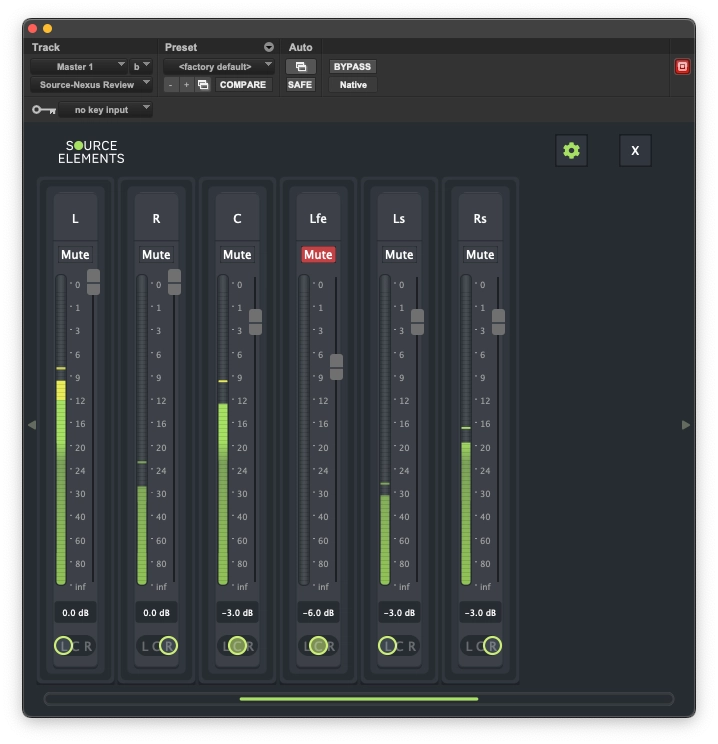
If the downmixer includes Pan Law options for the selected format, choose the Pan Law that best matches the translation you expect from your delivery or monitoring workflow. You can also mute specific channels to check how much each channel contributes to the stereo or binaural stream.
Monitoring the original and processed output
Use the A/B monitoring toggle to switch your monitor output between the original surround mix and the processed downmix or binaural render. This makes it easier to confirm that the remote review stream still preserves important balances, dialogue clarity, music levels, effects placement, and phase relationships.
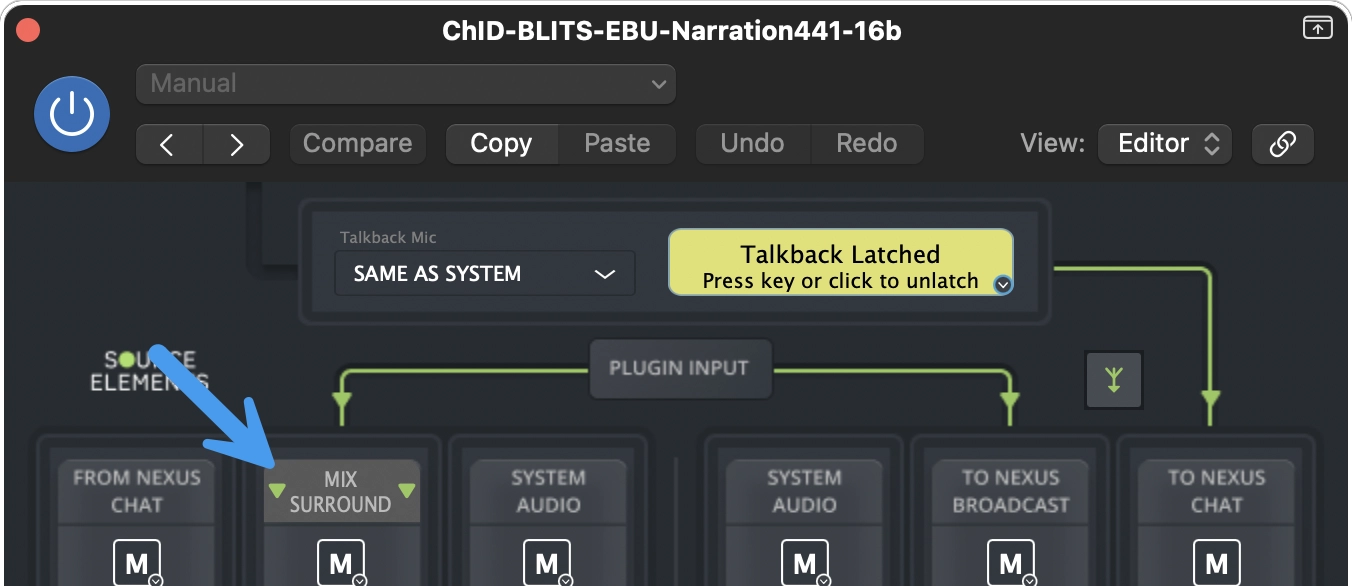
When preparing a remote session, check the processed output before sending it to reviewers. If the downmix changes the apparent balance of critical elements, adjust the channel levels, panning, or renderer choice before starting the review.