
Source-Nexus Gateway 2 Walkthrough
1. Introducing Source-Nexus Gateway v2
Source-Nexus Gateway is a web-based interface where you and your clients meet together at the same time to review, approve, and collaborate in the highest-definition audio and video available on browser platforms today. Along with a new low-latency audio review, Source-Nexus Gateway merges the Source-Live video viewer, video chat, and text chat with additional features of talkback, screen-sharing, and host controls to offer a unique, easy way to invite viewers via a dynamic web interface.
2. What's new in this Release (V2)
This second release of Source-Nexus Gateway includes two new major features:
Redesigned User Interface
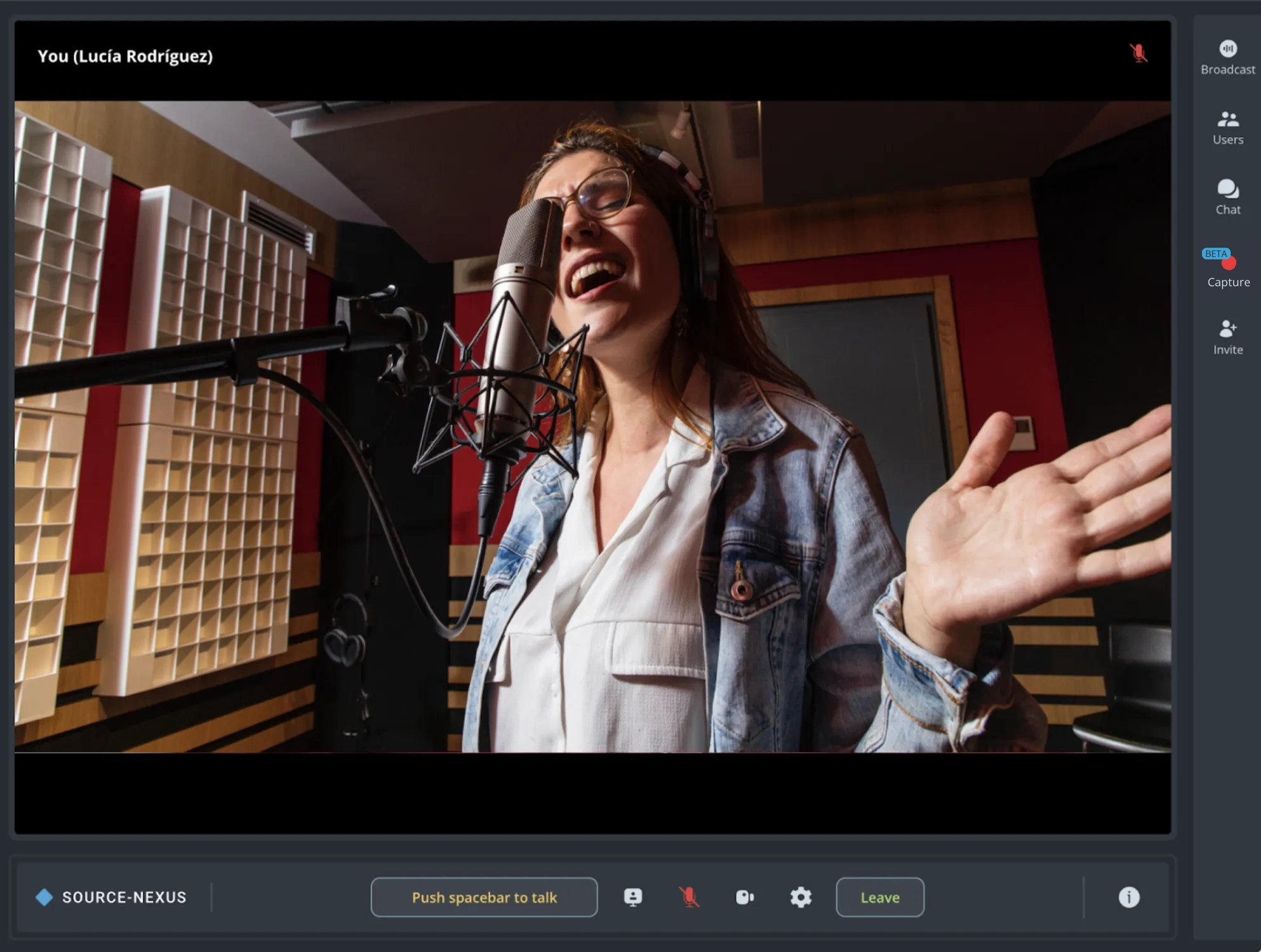
The Source-Nexus Gateway interface now features a fresh, modern UI that makes remote collaboration even more intuitive and efficient. All of the powerful features in the public Source-Nexus Gateway version are intact - you will just notice a cleaner layout and a more streamlined workflow.
Enhanced Capture Feature
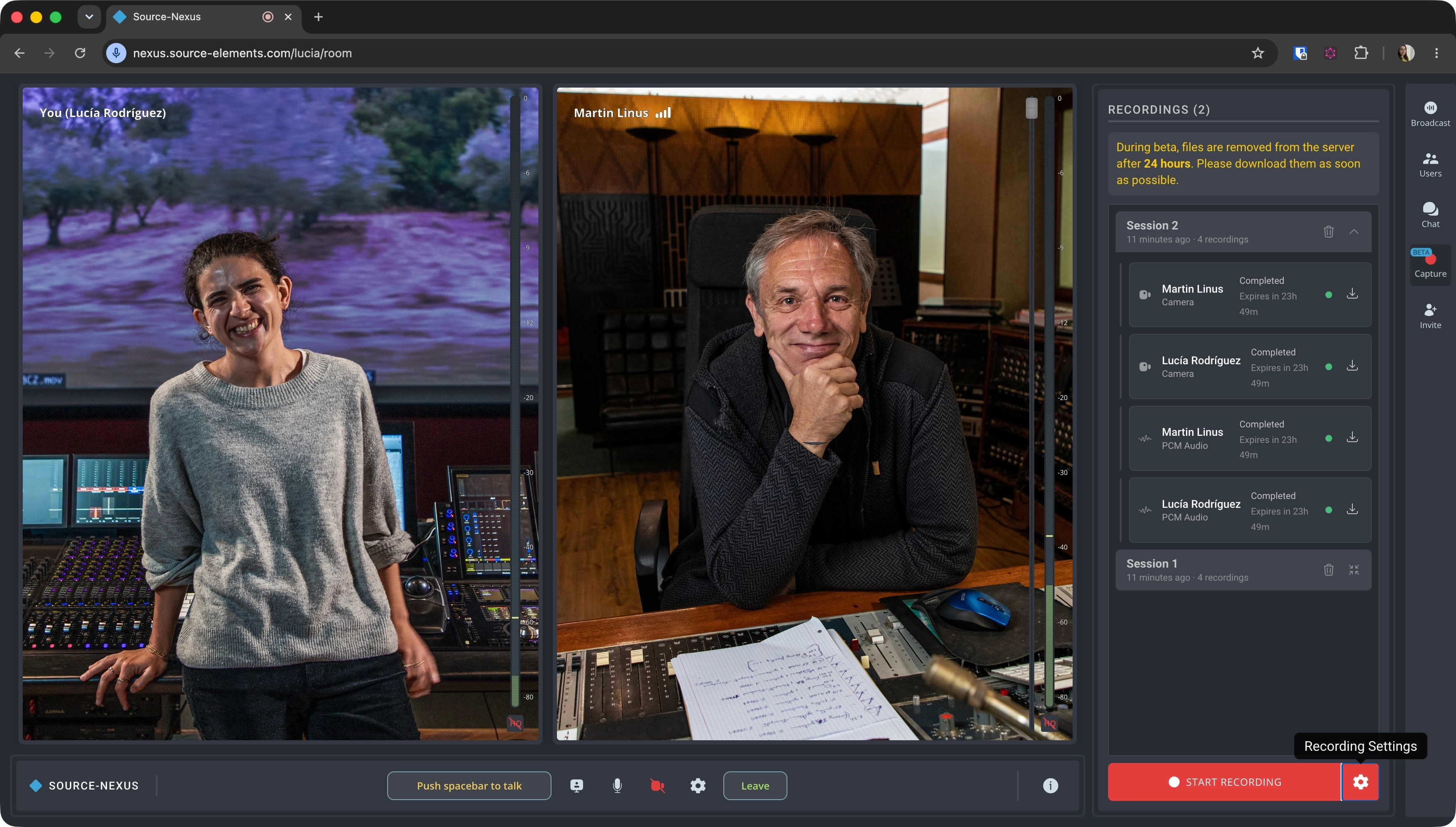
The existing capturing tool in the Source-Nexus Gateway has been significantly enhanced and optimized to allow users to select between two capturing modes to capture high-quality audio and video directly within the application.
3. System Requirements
Your viewers will require at least as much download bandwidth as the stream quality settings for each component. When working with audio only and no video, generally we recommend at least 1MB of upload and download speed, but more is always better in streaming configurations.
Important: 4G and LTE cellular networks generally support Source-Nexus Gateway streams. Note, however, that streaming HD video will consume significant bandwidth! We do not recommend viewers use their 4G or LTE connection to stream Source-Nexus Gateway with video chat or screen-sharing enabled, except when absolutely necessary.
When receiving a broadcast, it is necessary to use:
- macOS: Chrome, Firefox, Safari, Opera, and any Chrome variants
- Windows: Chrome, Firefox, Opera, Edge, and any Chrome variants
- Mobile: Android (Chrome, Firefox) and iOS (Safari)
In non-Chrome browsers, set your default audio output in your System Preferences (Mac) or Control Panel (Windows). Guests and broadcast viewers will not need to have any plugins installed or download any software.
For mobile devices with small screens, such as smartphones, you will need to use the Source-Nexus web broadcaster in portrait mode. Landscape mode is not supported.
When streaming a Source-Nexus audio broadcast as a host, it is necessary to use Chrome, Opera, or Edge:
- macOS: Chrome and any Chrome variants
- Windows: Chrome, Opera, Edge, and any Chrome variants
- Mobile: Not supported
Please read through the following article for details on limitations when using Safari (macOS, iOS or iPadOS) with the Source-Nexus Gateway.
Network Configuration
To establish a connection from your computer to the world, the Source-Nexus Gateway uses the WebRTC protocol. No port forwarding is required.
Bandwidth
Source-Nexus Gateway requires an internet connection with a bandwidth of at least 300 kbps upload when in audio-only mode, and at least 1MB upload for video.
Your download speed does not really affect the capabilities of Source-Nexus Gateway when you are using the Audio Broadcaster only. The end experience for your client will completely depend on the processing power of your CPU and your internet connection to upload your stream at an acceptable speed.
For video chat and screen-sharing, you will need at least 1MB upload per video instance. For example, if you have a chat with 3 people, and you wish to also screen share, you need at minimum a dedicated 4MB upload.
We recommend testing your setup well ahead of time to ensure your system is configured properly for any streams you may have planned.
Because your streamed data is processed through a server, potential viewers all over the world can join your stream with ease. If you are experiencing bandwidth issues, this will likely be related to your network’s upload speed. Please refer to the Contacting Support article for further guidance.
Firewalls and Routers
While most networks allow Source-Nexus Gateway connections by default, if you are unable to log in, this most likely means your network is too restricted in order to make proper use of the Source-Nexus Gateway, and you should discuss further options with your IT department. You may need to configure your firewall and/or router if you are on a corporate network. Corporate networks may be able to provide QoS services to increase your application bandwidth. Please contact us for support on these matters.
Your remote viewer is unlikely to have any issues receiving your broadcast stream unless they are on a very restricted corporate network. In the unlikely event this occurs, please contact us for support.
4. Accounts and Licensing
This Source-Nexus Gateway release is included in the Source-Nexus Suite. You can read detailed information about each plan here: Selecting The Best Source Nexus Plan For Your Needs.
In summary:
- There is a free tier of the Source-Nexus Gateway, called Source-Nexus free. This version means that you only need a Source Elements account to use the web application. Your session will be audio-only, with broadcast quality (256kbps, OPUS, mono only).
- There are paid subscriptions (monthly, yearly and two-yearly). These include stereo, 512kbps, and separate stereo audio broadcast, in addition to video chat. Users can also screen share and integrate with Source-Live, a professional-grade flagship product of Source Elements.
iLok is not required for the Source-Nexus Gateway.
5. Redesigned User Interface
As mentioned above, this Source-Nexus Gateway release includes a new user interface with tab-like components that make it much easier to find your controls and a cleaner taskbar.
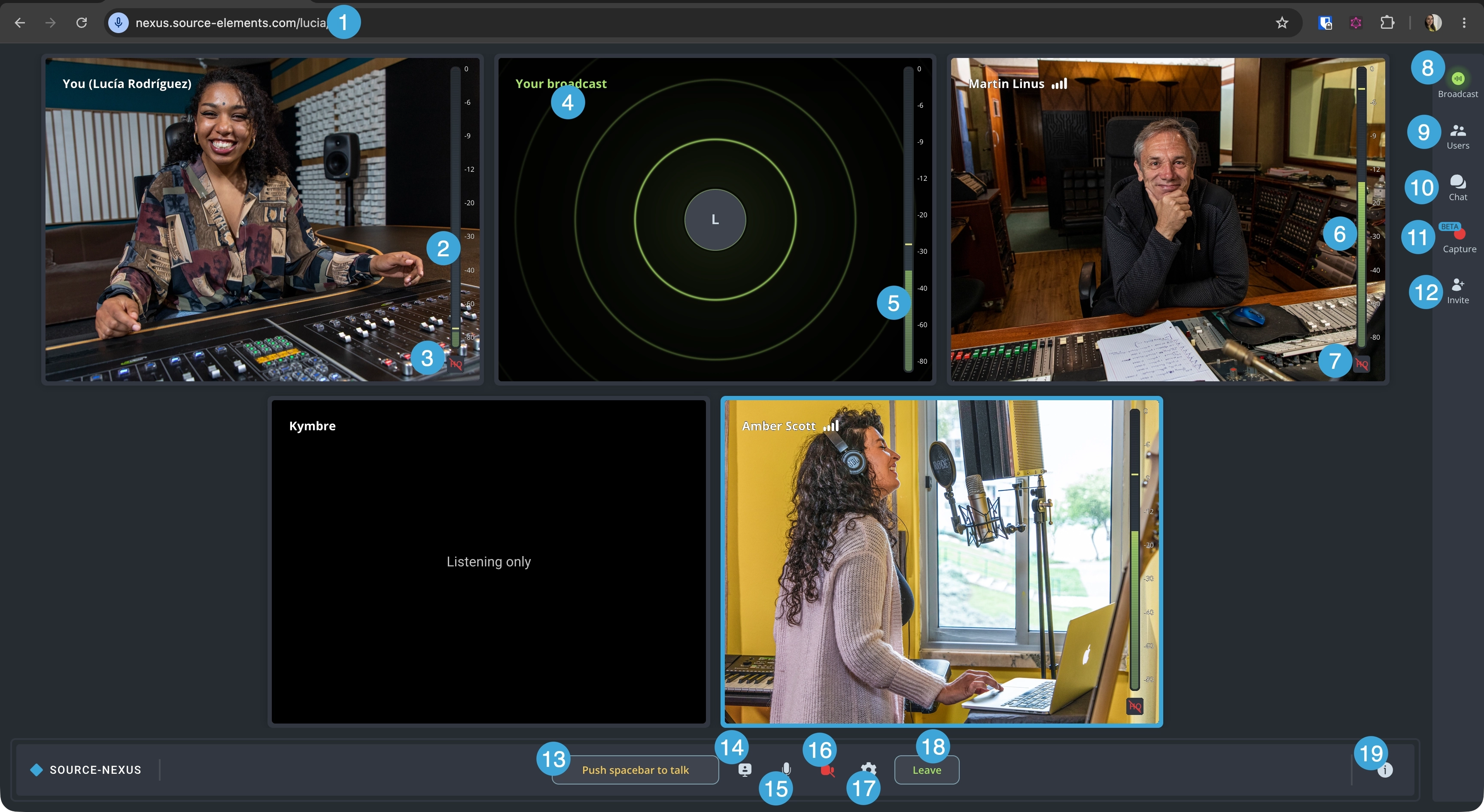
As a broadcaster, you will have the following tabs available:
- Caller ID: the ID for your Source-Nexus Gateway session. You can invite other users to join your broadcast by sharing this URL or by going through the Invite panel.
- Your level meter. If your audio input has been configured correctly, you will see signal coming into the level meter.
- Your HQ indicator. If you have turned on 'Use Original Audio (HQ)' > Stereo Audio in the Audio panel of the Chat settings, you will see an HQ indicator on your participant widget. We recommend using original audio for the best quality - you should use headphones to prevent audio feedback.
- Your broadcast widget. If you have configured your broadcast settings in the broadcast panel, you will see a separate widget with your audio/video broadcast (as applicable). Icon number 8 (broadcast panel) will also turn green.
- Your broadcast level meter. If the audio input for your broadcast has been configured correctly, you will see signal coming into the broadcast level meter.
- Level meter for other participants. If other participants are not muted and active engaging in your call, you will see signal coming in.
- HQ indicator for other participants. If participants on your call have turned on their original audio, you will see an HQ indicator. You can turn this on/off if you are having bandwidth issues.
- Broadcast panel. This panel will allow you to configure to configure your external audio source, input, bandwidth and video settings, if necessary. You can read more about these controls in this section.
-
Users panel. This section will allow you to see the list of participants on your call - including those that do not
have their cameras on. There are two additional settings for broadcasters:
- Mute individual participants.
- Block participants
- Chat, which will display any in-call messages and allow you to contact other participants on the call.
- Capture panel. The existing capturing tool in the Source-Nexus Gateway has been significantly enhanced and optimized to allow users to select between two capturing modes to capture high-quality audio and video directly within the application. For more information, read through this section.
- Invite panel. Clicking this button will open a side panel, which allows you to share your room link and send an invitation out to one or multiple users.
- Push to talk. Pressing the spacebar will allow other participants to hear you, even if you are muted. When your talkback microphone is open, the button will be yellow and read “Release spacebar to mute” instead.
- Sharing panel. When screen sharing is on, the indicator will be green. If no screen is being shared, the indicator will be gray instead.
- Mic on/off. This button will allow you to turn your microphone on/off. This is not a toggle - unlike the push to talk button. You can configure your microphone in the Chat Settings.
- Camera on/off. This button will allow you to turn your camera on/off for other participants to see you. You can configure your camera in the Chat settings (button 13).
-
Chat settings. The chat settings menu allows you to both enable and change your:
Microphone (output).- Camera device.
- Speakers (input) - these cannot be disabled.
- Leave video chat. Clicking this button will remove you from the call. All remaining participants will see a message saying the session is no longer active.
- Host information. This will include the host's name and profile information, if they have chosen to share it publicly.
As a viewer, you will see the Users, Chat and Capture tabs only.
At the bottom of the Source-Nexus Gateway window, you will see controls that are similar to the ones in the live version:
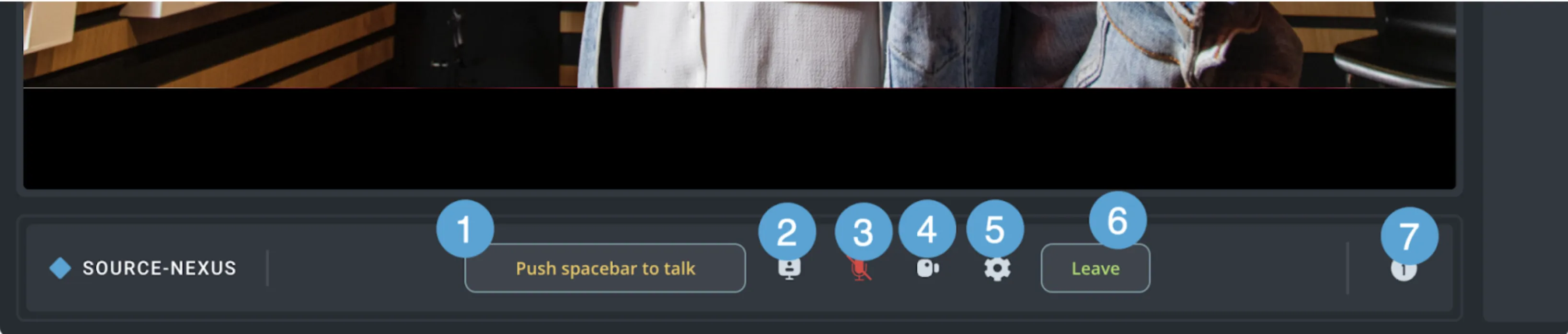
- Push spacebar to talk: a talkback tool to control your output during the session.
- Share screen: a sharing button to share your entire screen, a tab, or a window. Unlike the live version, you will not see the option to select a video device. You can find this option in the broadcast tab.
- Input device selection: a button that opens up a selection menu with all your audio devices.
- Camera on/off: a button that allows you to quickly turn your camera on or off for other participants to see you. You can change your camera source with the option (5) menu.
- Chat settings: a button that will open all your Audio, Video and General settings. You can find a complete list of host and viewer settings here.
- Leave button: clicking this button will remove you from the call. If you are the host, all remaining participants will see a message saying the session is no longer active.
- Host information: this pop-up will include the host’s name and profile information if they have chosen to share it publicly.
6. Enhanced Capture Feature
The existing capturing tool in the Source-Nexus Gateway has been significantly enhanced and optimized to allow users to select between two capturing modes to capture high-quality audio and video directly within the application.
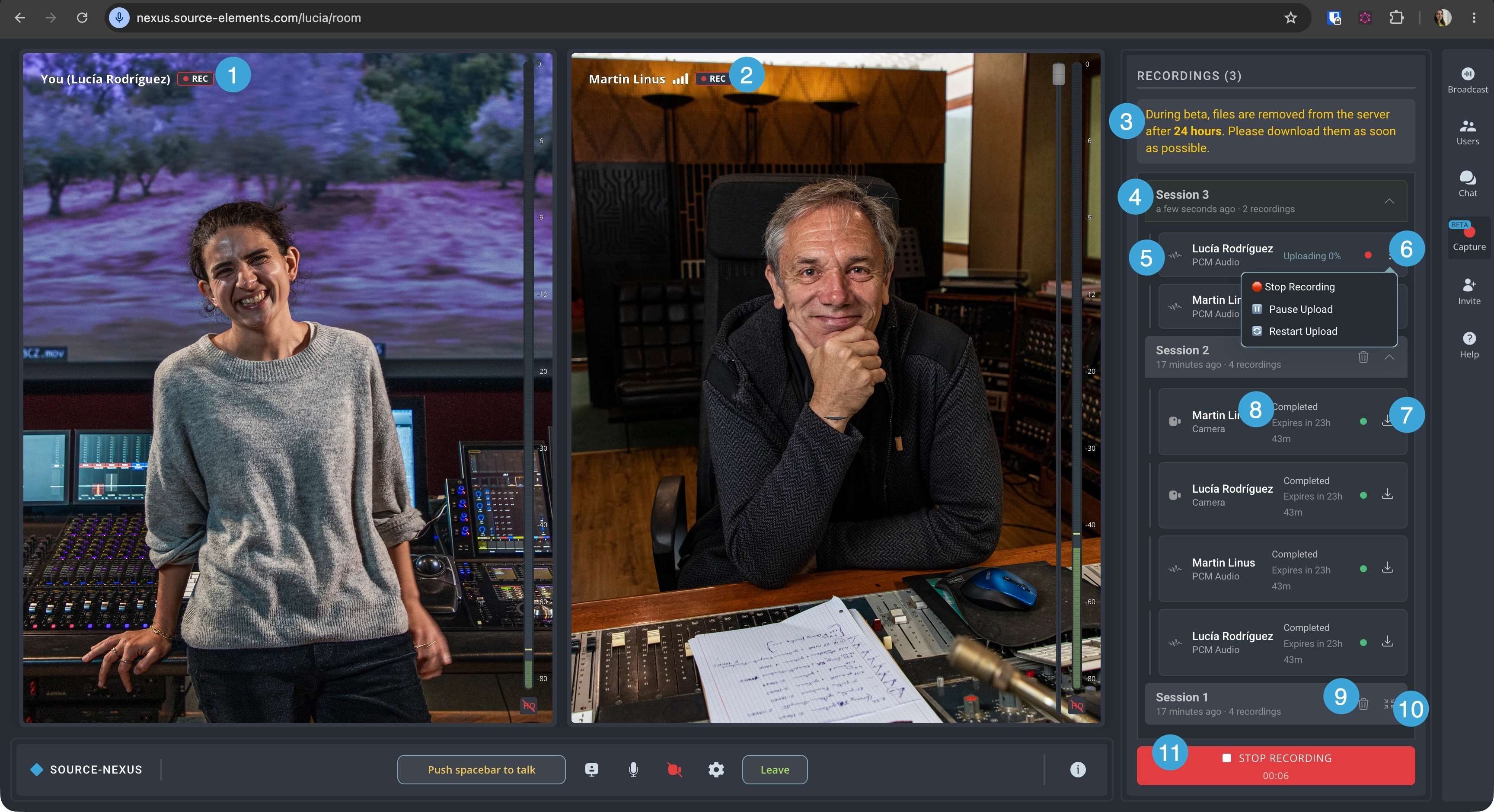
As a host, you will see the following menus and controls:
- Recording ON indicator for your own feed. If you have chosen to capture your own camera in the capture settings panel, you will see a recording indicator.
- Recording ON indicator for your participants. If you have chosen to capture your own camera in the capture settings panel, you will see a recording indicator.
- Beta disclaimer. The new capture panel is still in beta - therefore, captures are not saved on the Source Elements servers for more than 24 hours. We recommend that you download all relevant files before you leave the session.
- Session folders and files. In this area, you will see any video or audio captures you have enabled for a specific broadcasting session. The session folder will include as many participants as you have selected, their video inputs and screen recordings if you are sharing anything.
- Recording type. There will be an icon next to each recording item indicating the type of recording it is (PCM audio, regular audio, camera or screen recordings).
- Available actions for each recorded item.
- Stop recording: this option will completely stop recording the person(s) you have selected for the duration of the broadcasting session. You cannot resume recording.
- Pause upload: this option will momentarily pause a recording being uploaded. You might want to select it if you notice any network issues or you know your bandwidth might not be enough for all recordings.
- Restart upload: you can restart the upload if you notice the recording might not be getting uploaded and you want the upload to start from scratch again.
- Download button: this will download the video, audio, or screen share that has been uploaded.
- Upload status: the status of each recording item - they might be "Uploading", "Stopped", "Paused" or "Completed". If the status is "Completed", you will also see the expiration date for the download - after the counter reaches 0, you will not be able to download the recording and it will disappear from the panel.
- Delete button: this option will delete the recording session and all of the recordings (video and audio) in it.
- Expand/collapse session. This will allow you to view all recorded items within a session.
- Start/Stop recording button. When the session has not started yet, you will see a cog icon next to the "Start recording" button with the following recording settings:
- PCM Audio Recording: this option will allow you to record high-quality uncompressed audio as a separate file (not included in video) for post-production use. Keep in mind that the resulting file will be larger and this might use more bandwidth.
- Sources: this section of the settings menu allows you to select the individual audio, video or screen items you want to record. You can choose to start and stop the recording as many times as needed during your broadcast, so you might want to check/uncheck any participants, as needed.
As a broadcast guest, you will see a visual indicator on the Capture window if the host has chosen to record your audio and/or video. You can stop the recording, pause or restart the upload again as needed.
7. Getting Support
Comprehensive documentation is available in this document. If your question is not answered, please send an email to the support team at [email protected]. When you do so, please provide us with all the pertinent information required to resolve this issue. This includes, for example:
- Your computer type (Mac or Windows)
- Host and browser version.
- Network capabilities. If possible, please run the following speed test and send us a capture of your specs: https://www.speedtest.net/
Known issues
- The video chat recording quality is limited to 720p, and 1080p for presentation/screen share. We plan to allow higher resolutions in later releases.
- Video and PCM audio files do not sync up properly. We recommend using one or the other at the moment.
- Continuous upload can cause issues for users with limited bandwidth - the effects of this will only be seen during the live connection and not in the recording. We recommend pausing the upload for affected users to avoid this, then resuming the upload once recording is complete.
- Media files' start times do not line up perfectly. Some manual adjustment will be needed when importing and editing in a video editor.
Table of Contents