
Recording Sessions in the Source-Nexus Gateway
This article is part of the Source-Nexus Gateway User GuideThe Capture panel in Source-Nexus Gateway gives broadcasters a central place to manage session recordings from inside the call. From this panel, you can choose which available sources should be recorded, such as participant audio, camera feeds, screen shares, and your own feed. When capturing is active, Source-Nexus Gateway displays recording indicators so both the broadcaster and participants can see when a feed is being captured.
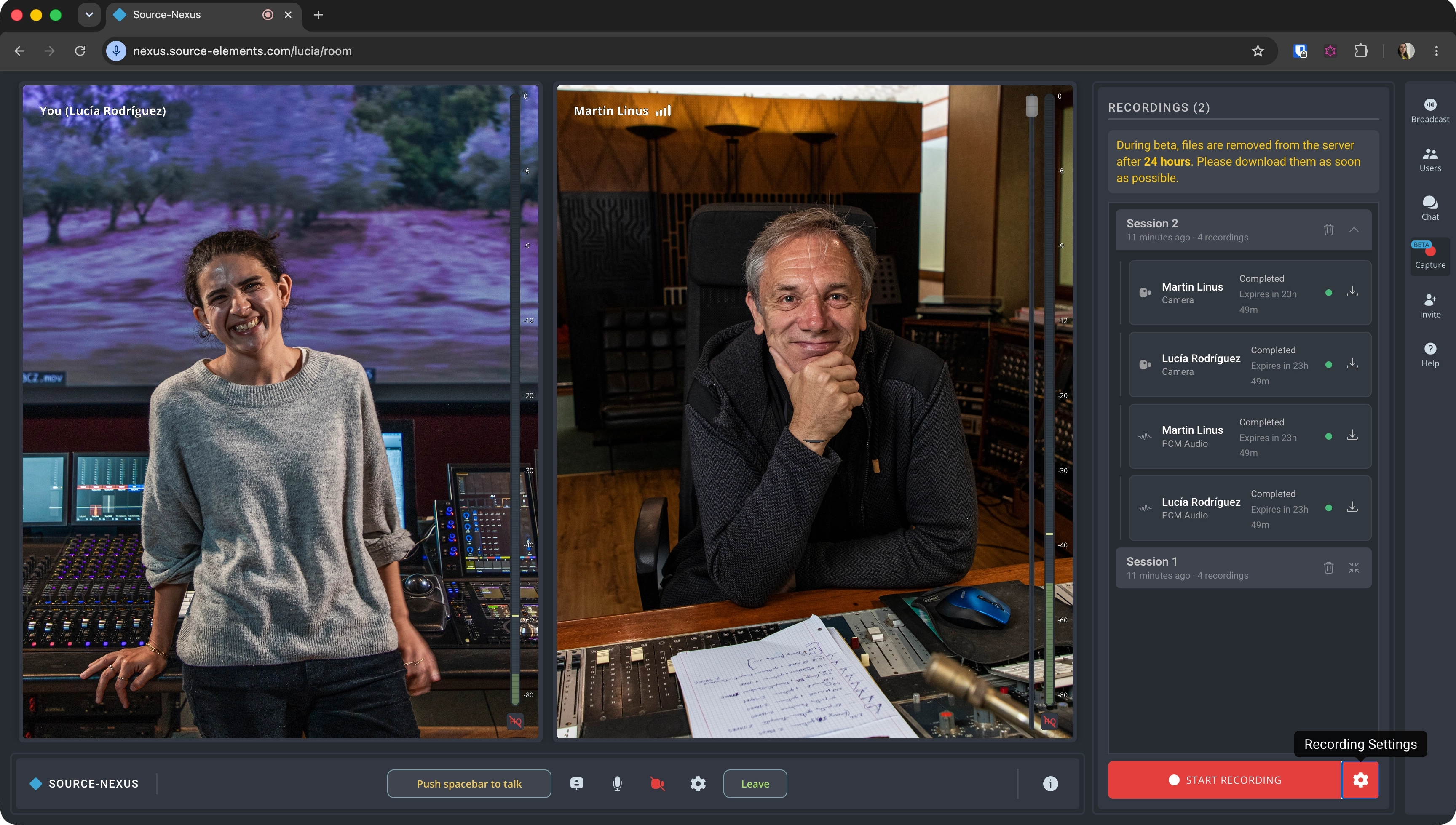
Recordings are organized by session, with each recorded item listed inside the relevant session folder. Each file includes an icon that identifies the type of recording, such as PCM audio, standard audio, camera video, or screen recording. You can find completed session folders both in the Capture panel and later in Dashboard > My Files. The Capture panel's link to this location may be labelled Dashboard > Media.
- For a breakdown of each section of the Capture panel as a broadcaster, read through this article.
- If you want to know about each control in the viewer version of the Capture panel, go through this article instead.
Uploads and Expiry
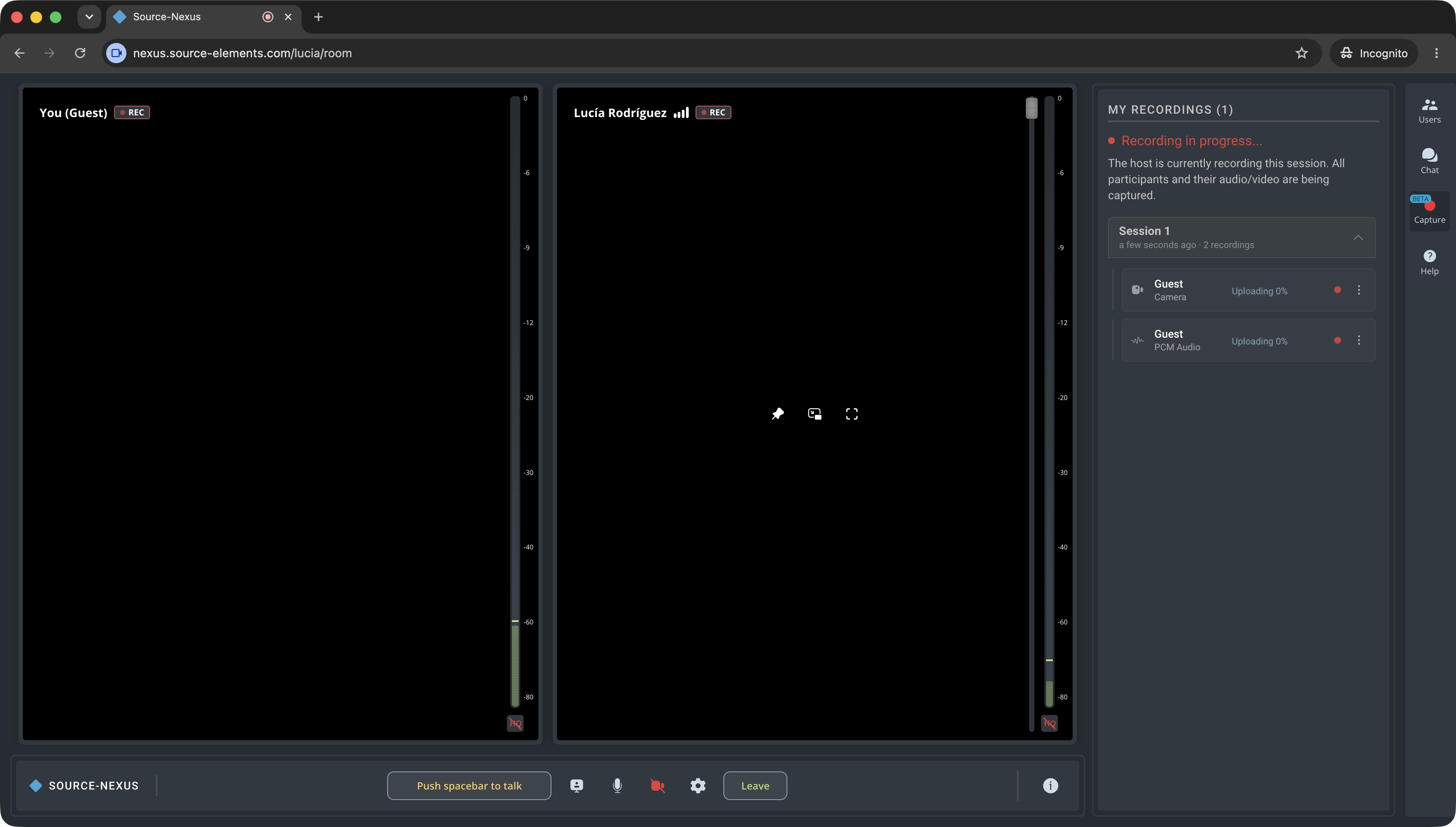
Files upload in real time while recording. The progress bar shows the upload progress for each part of a recording while the recording is in progress, then shows the remaining progress after the recording has stopped. Depending on the state of the file, you may see statuses such as uploading, paused, stopped, or completed. Use the three-dot menu next to a file to pause or restart its upload.
Keep the Source-Nexus Gateway page open until uploads finish. If you need to leave, the file is stored locally; return to the session later to resume the upload.
During the Capture beta, download links expire 24 hours after an upload completes. Download required audio, video, and screen-recording files promptly from the Capture panel or Dashboard > My Files. Once the timer reaches zero, the download is no longer available and the recording is removed from the server.
Managing Storage and Recordings
Open Dashboard > My Files to manage completed Capture recordings after a session. The library shows sessions as folders. Select a session folder to view the recordings it contains, including the recorded sources and their file types. The storage meter shows the amount of available storage currently in use.
Select one or more recordings using the checkboxes on their file cards. The controls at the bottom of the page show how many recordings are selected and let you do the following:
- Download: download the selected recordings.
- Delete: permanently delete the selected recordings. You can select and delete multiple files at once.
- Select all: select every recording in the current session folder. Use Clear to remove the current selection.
Completing Incomplete Guest Uploads
Source-Nexus Gateway recordings appear in Dashboard > My Files after they are captured. If a guest leaves the session before their recording finishes uploading, the file manager marks the affected session as having an incomplete recording.
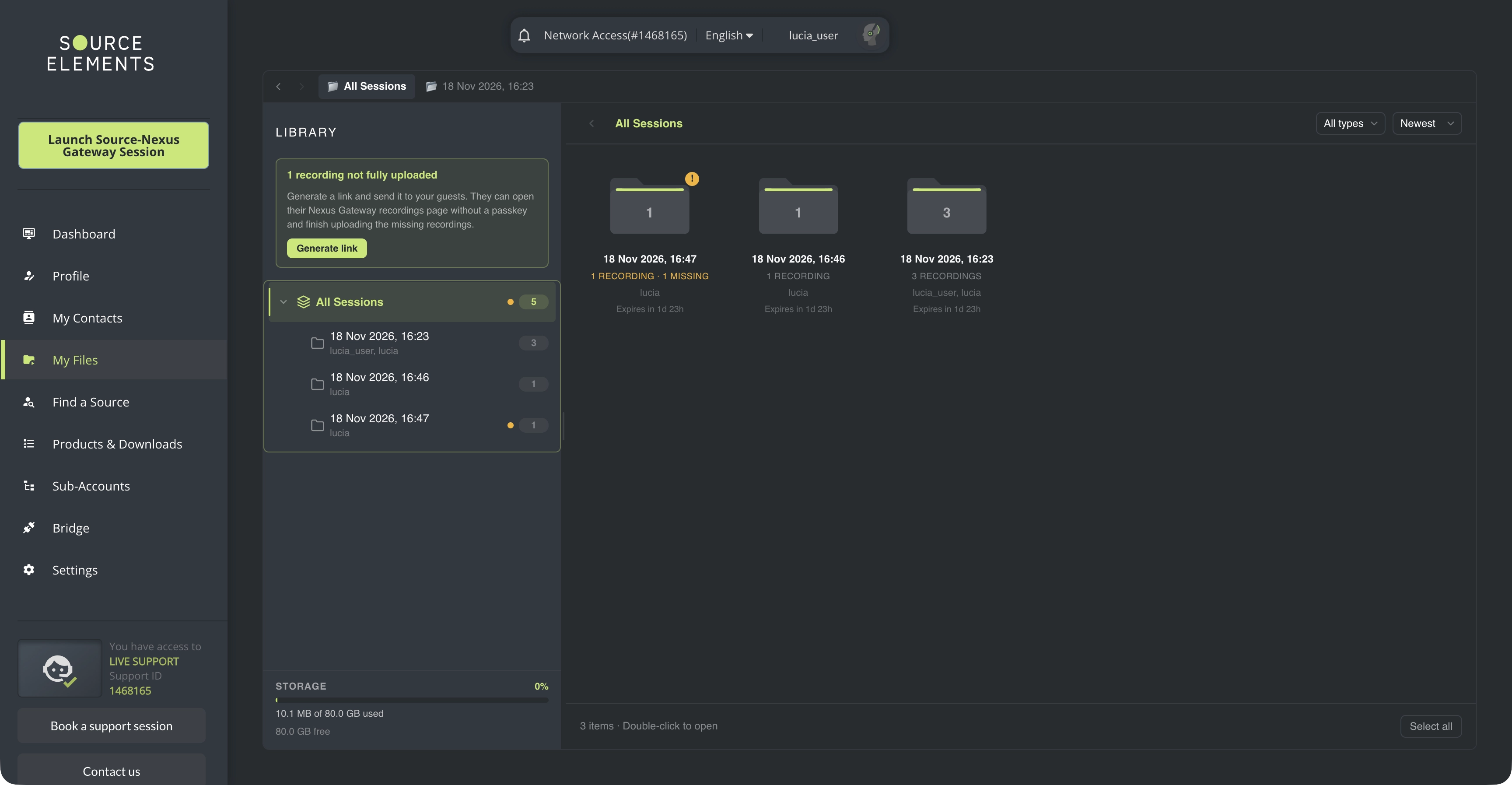
You can download the portion of the recording that has already uploaded. To request the missing portion, select Generate link and send the resulting link to the guest. They can open their Source-Nexus Gateway recordings page without a passkey and complete the missing upload without rejoining the original Source-Nexus Gateway session.