
Capturing Sessions in the Source-Nexus Gateway
This article is part of the Source-Nexus Gateway User GuideThe Capture panel in Source-Nexus Gateway gives broadcasters a central place to manage session recordings from inside the call. From this panel, you can choose which available sources should be recorded, such as participant audio, camera feeds, screen shares, and your own feed. When capturing is active, Source-Nexus Gateway displays recording indicators so both the broadcaster and participants can see when a feed is being captured.
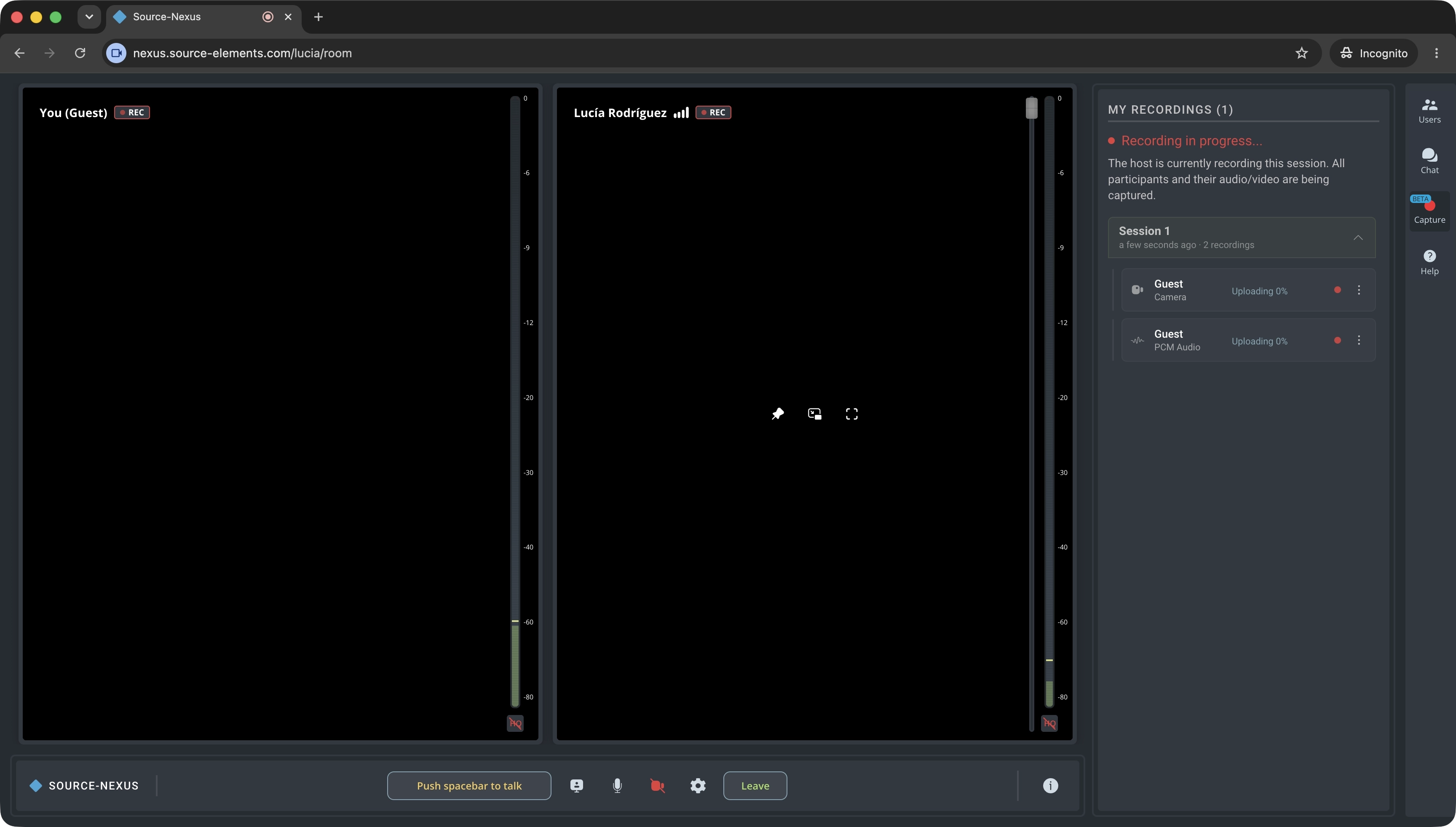
Recordings are organized by session, with each recorded item listed inside the relevant session folder. Each file includes an icon that identifies the type of recording, such as PCM audio, standard audio, camera video, or screen recording. This makes it easier to confirm which parts of the session were captured and to locate the files you need after the recording has finished.
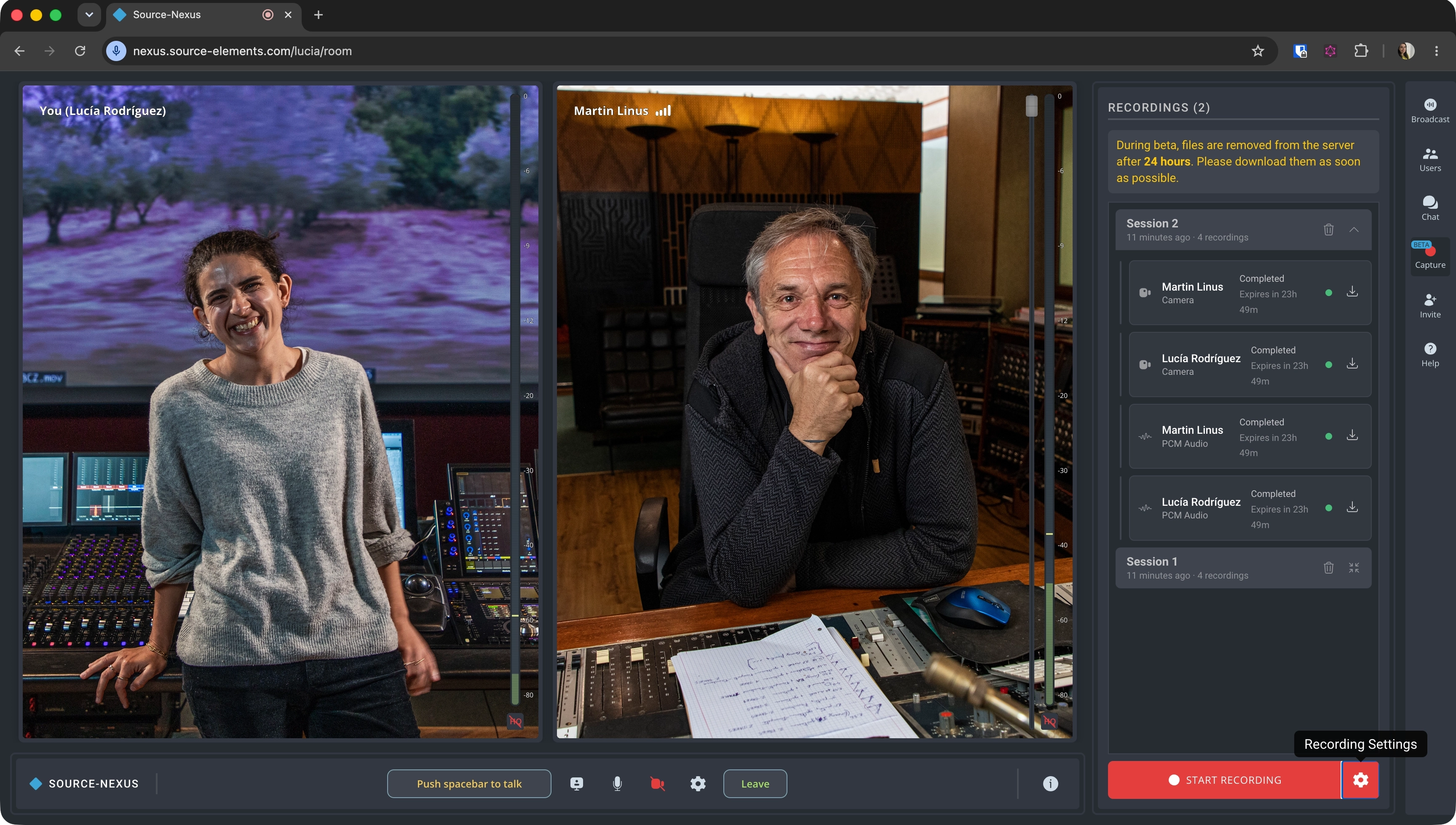
Each recording item also shows its upload status. Depending on the state of the file, you may see statuses such as uploading, paused, stopped, or completed. Broadcasters can pause or restart uploads if there are network or bandwidth issues, and completed recordings can be downloaded directly from the panel while they are still available.
Because the updated Capture panel is currently in beta, recordings are only stored temporarily and are not kept on Source Elements servers for more than 24 hours. We recommend downloading all required audio, video, and screen recording files before leaving the session, especially when the recordings are needed for editing, review, approvals, or delivery.
- For a breakdown of each section of the Capture panel as a broadcaster, read through this article.
- If you want to know about each control in the viewer version of the Capture panel, go through this article instead.