
How to modify your guest's settings on Source-Nexus Gateway
This article is part of the Source-Nexus Gateway User GuideHosts can use the Source-Nexus Gateway Users panel to request permission to view and modify a guest's audio, video, and general settings. This can make remote setup faster when the host is familiar with the platform and the guest needs help selecting the correct devices or quality options.
Guests must approve the advanced host controls request before you can modify their settings.
Opening the Users panel
After joining your Source-Nexus Gateway session as a host, open the Users panel from the right-hand controls. The panel lists the participants in the room, including guests who do not have their cameras enabled.
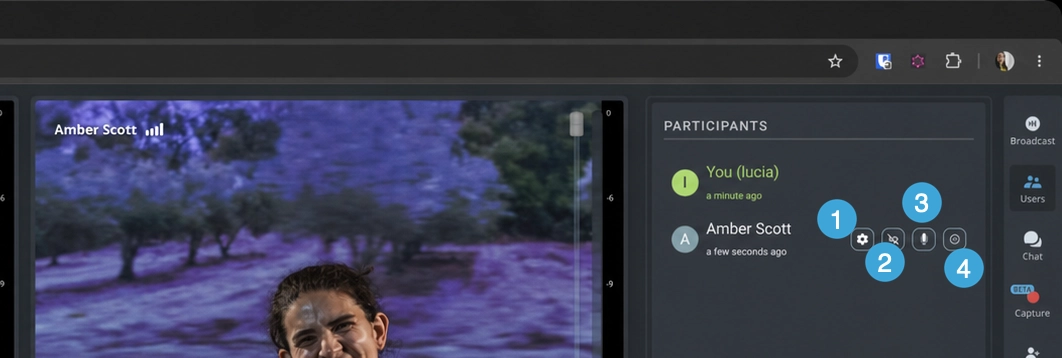
From this panel, hosts can use the following participant controls:
- Advanced Host Controls: sends the guest a request for approval. The advanced settings panel is displayed after the guest approves the request.
- HQ Audio: turns the guest's ability to use original audio on or off.
- Microphone muting: mutes the guest's microphone.
- Remove users: removes a participant from the current Source-Nexus Gateway meeting. We recommend updating the session passkey after removing participants for security reasons.
Requesting Advanced Host Controls
Click Advanced Host Controls for the guest whose settings you want to modify. The guest will receive the following approval request:
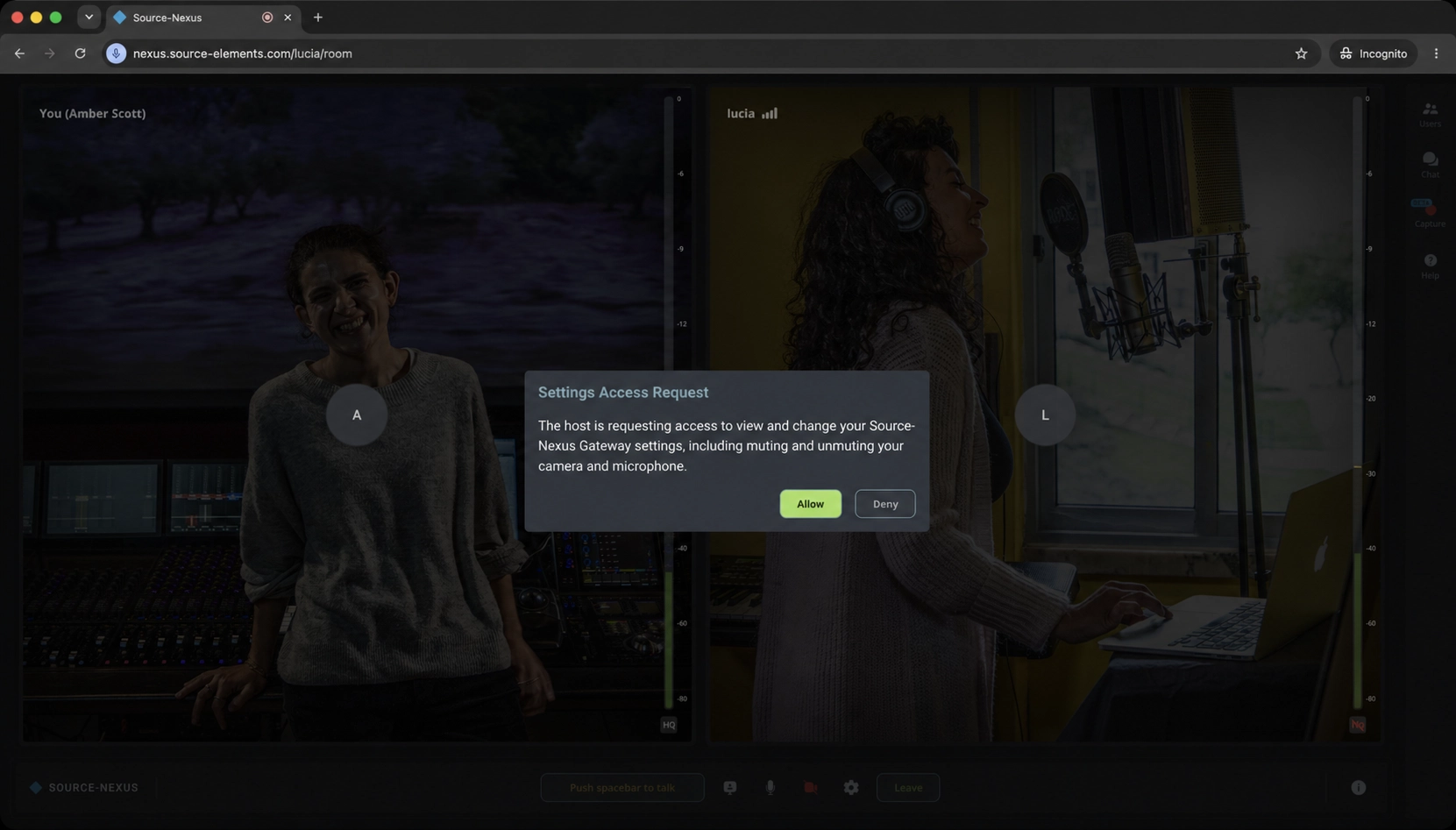
Once they approve it, Source-Nexus Gateway displays that guest's advanced controls.
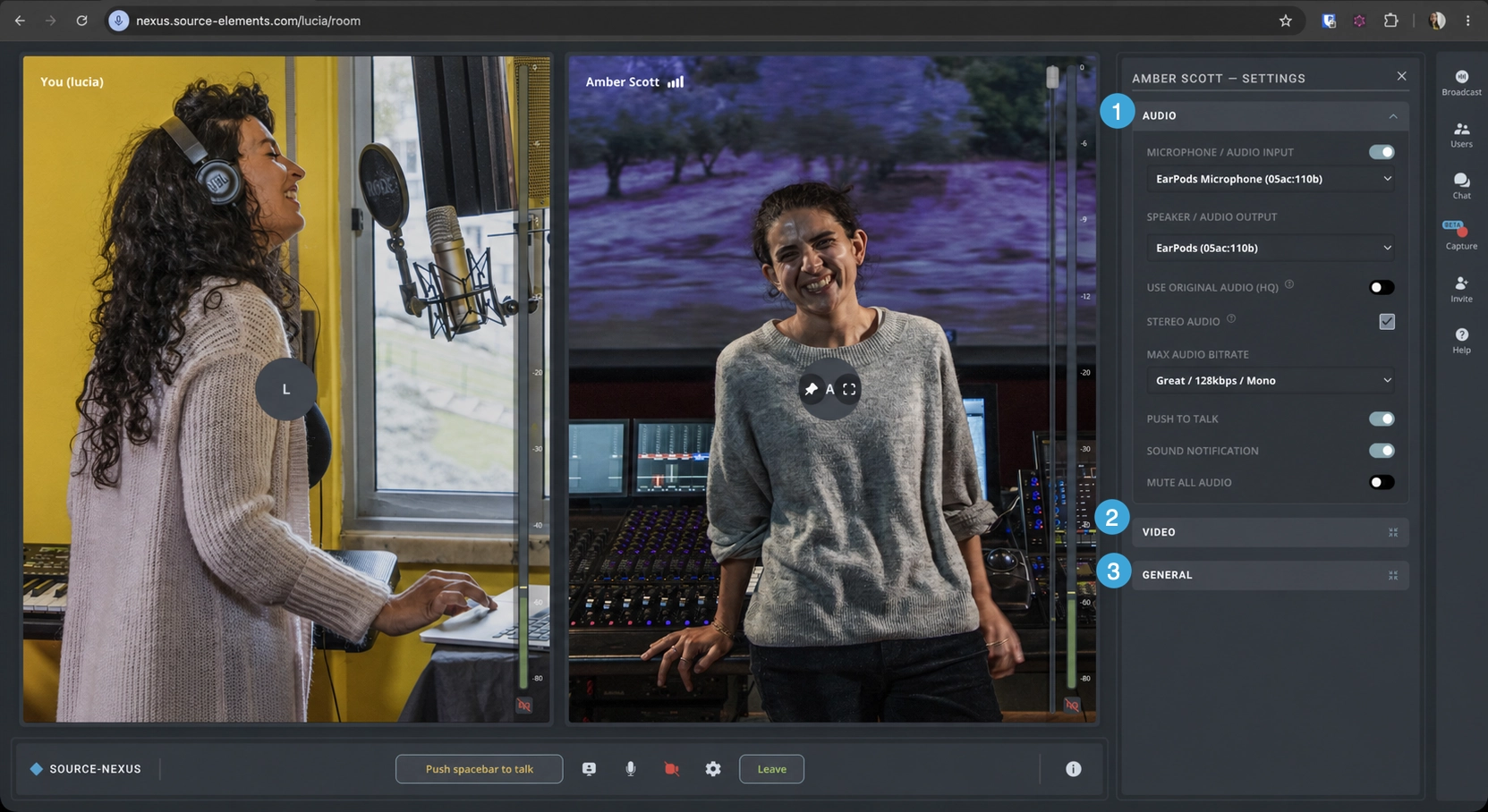
Audio controls
The audio controls let you configure how the guest sends and receives audio during the session.
- Microphone / Audio Input: the audio device used as the guest's microphone.
- Speakers / Audio Output: the audio device the guest uses to hear the broadcast.
- Use Original Audio (HQ): enables original audio for high-quality stereo audio. Source-Nexus Free supports mono only. We recommend using headphones to prevent audio feedback.
- Stereo Audio: turns on stereo audio when original audio is enabled.
- Max Audio Bitrate: sets the bitrate used for the guest's outgoing audio.
- Push to Talk: shows or hides the “Push spacebar to talk” button during broadcasts. This lets the guest's connection partners hear them and is an alternative to manually clicking the mute button.
- Sound Notification: mutes or unmutes notifications received during the broadcast, such as instant messages.
- Mute All Audio: mutes all audio for the participant, including the input. A button appears on the Source-Nexus Gateway main screen so the guest can unmute audio if needed; this does not unmute their microphone.
When the guest is sending mono audio, the available bitrate options are Good / 64kbps / mono, High / 96kbps / mono, Great / 128 kbps / mono (default), Top / 160 kbps / mono, and Best / 256 kbps / mono.
When the guest is sending stereo audio, the available bitrate options are Good / 128kbps / stereo, High / 192kbps / stereo, Great / 256 kbps / stereo (default), Top / 320 kbps / stereo, and Best / 512 kbps / stereo.
Video controls
The video controls let you configure the guest's camera and video quality settings.
- Camera / Video Input: enables or disables the guest's camera for the call.
- Send Resolution (Maximum): the maximum video resolution the guest will send to other users. The options are Low, Medium (SD), High (HD), and Highest (Full HD). Source-Nexus Gateway defaults to “Highest”.
- Receive Resolution (Maximum): the maximum video resolution the guest will receive from other users. The options are Low, Medium (SD), High (HD), and Highest (Full HD). Source-Nexus Gateway defaults to “Highest”.
- Background Blur: enables a slight or full blur behind the guest's video to obscure unwanted objects in their background.
- Mirror Self Video: horizontally mirrors the guest's own video when enabled.
- Mute All Video: mutes all of the guest's videos in the Source-Nexus Gateway session.
- Show my Camera Tile: shows or hides the guest's own camera tile in Source-Nexus Gateway.
General controls
The general controls let you update how the guest appears in the room and recover their connection if needed.
- Display Name: the name shown in the participants list to other users in the broadcast. This does not change the display name configured in the guest's user dashboard profile.
- Highlight Active Speaker: draws a blue border around the guest's video when they speak during the call.
- Reload Room: forces the guest to reload the Source-Nexus Gateway room. This is useful if they are experiencing network issues.