
Source-Connect 4 with Steinberg Nuendo
This tutorial demonstrates how to use Source-Connect 4 Studio/Facility with Steinberg Nuendo. Before we get started, make sure Source-Connect 4 and the Source-Connect I/O plug-in are installed and that Nuendo can find the plug-in.
Let's build a project session to host Source-Connect. Open a New Project by using the Menu to select File
--> New Project. 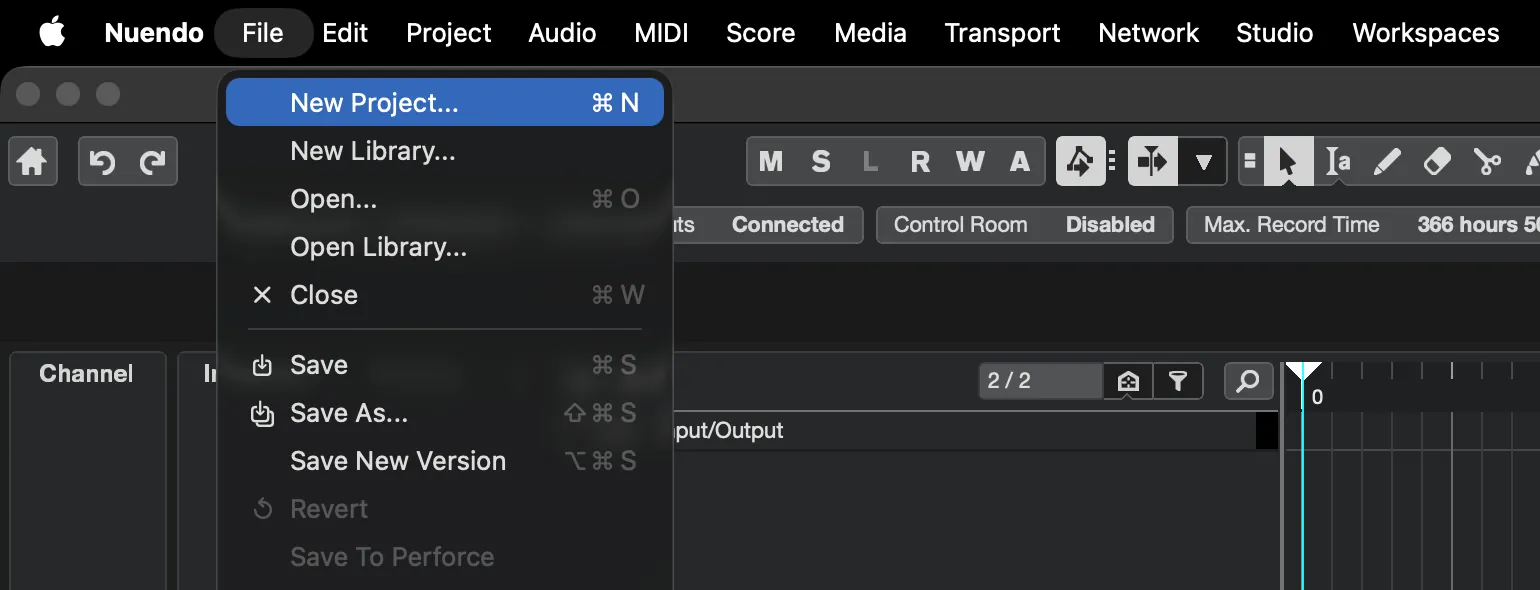
Create a Mono Channel by selecting Project --> Add Track --> Audio 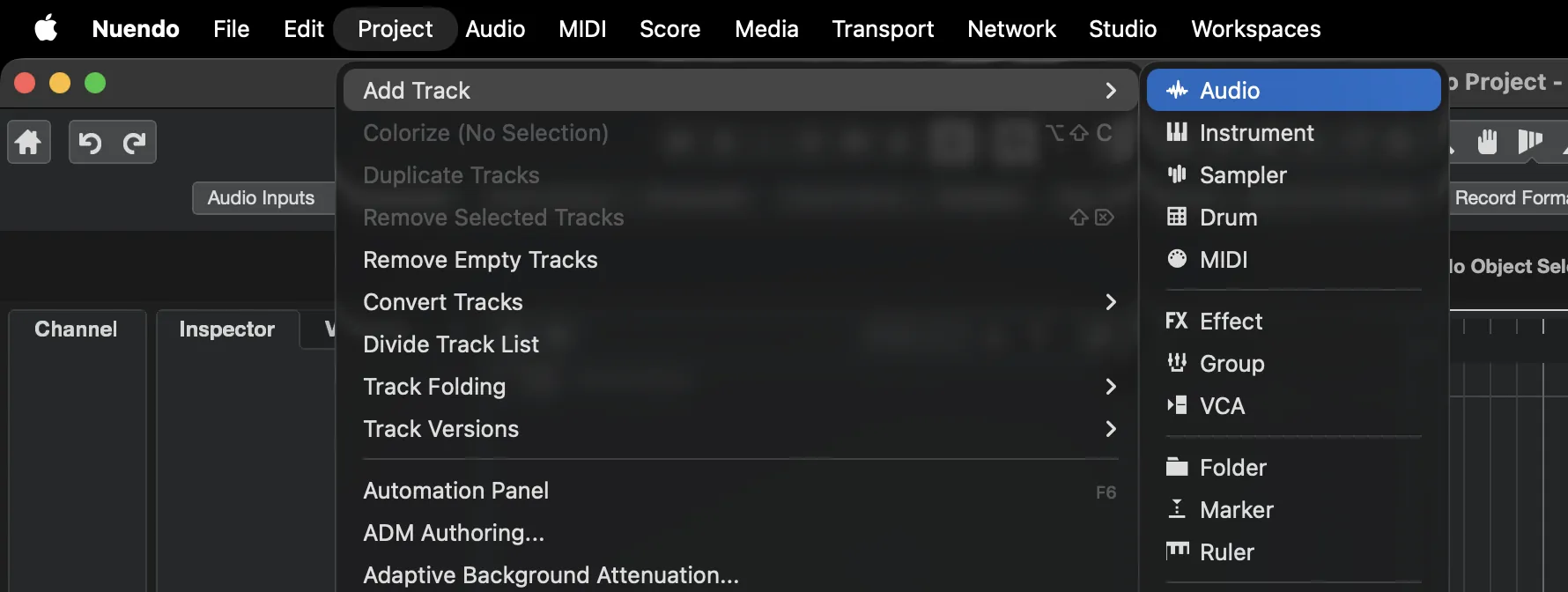
You will be asked to choose Mono or Stereo. Choose Mono, this will be our Record Track. Click the channel's label to rename it "Record".
Also, arm the Monitor and Record-Enable buttons. 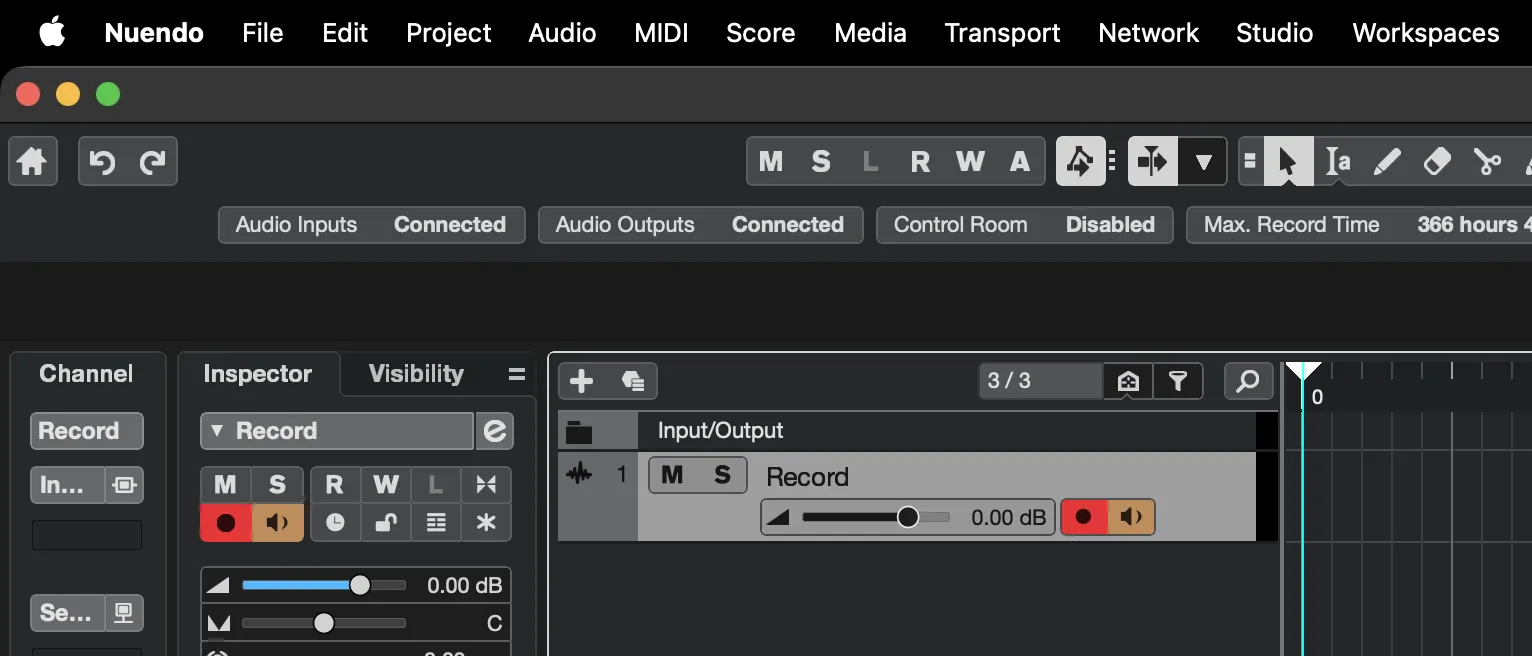
Add a Group Channel and label it Source-Connect. Next we'll instantiate the Source-Connect I/O plug-in. Go to Studio > MixConsole, open the Inserts panel, and select Other > Source-Connect on the group channel. Leave THRU muted and name the plug-in instance so you can identify it in Source-Connect.
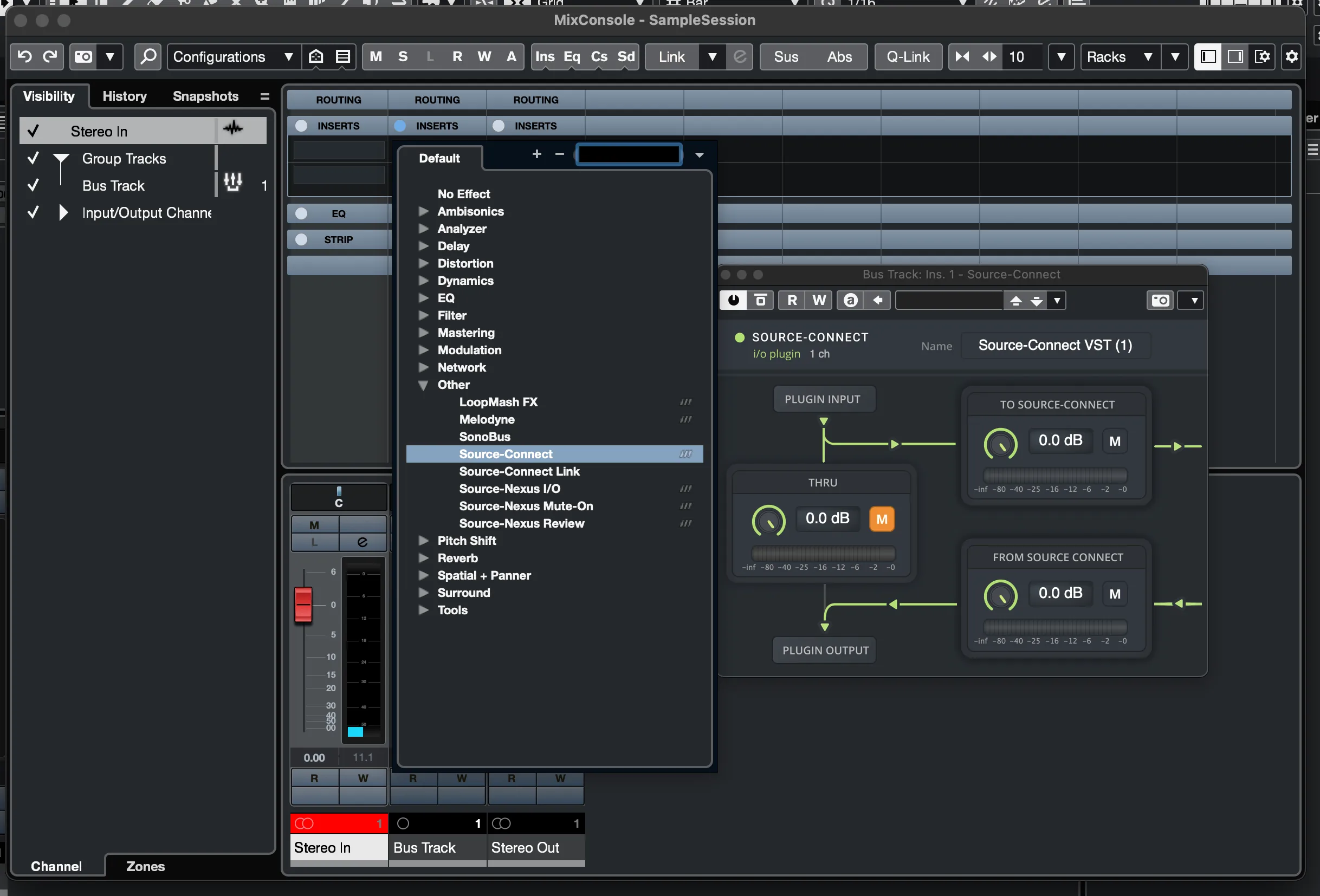
In the group's Sends panel, select Stereo Out; in its Routing panel, set its output to No Bus. Set the Record track's input to the group channel and its output to Stereo Out.
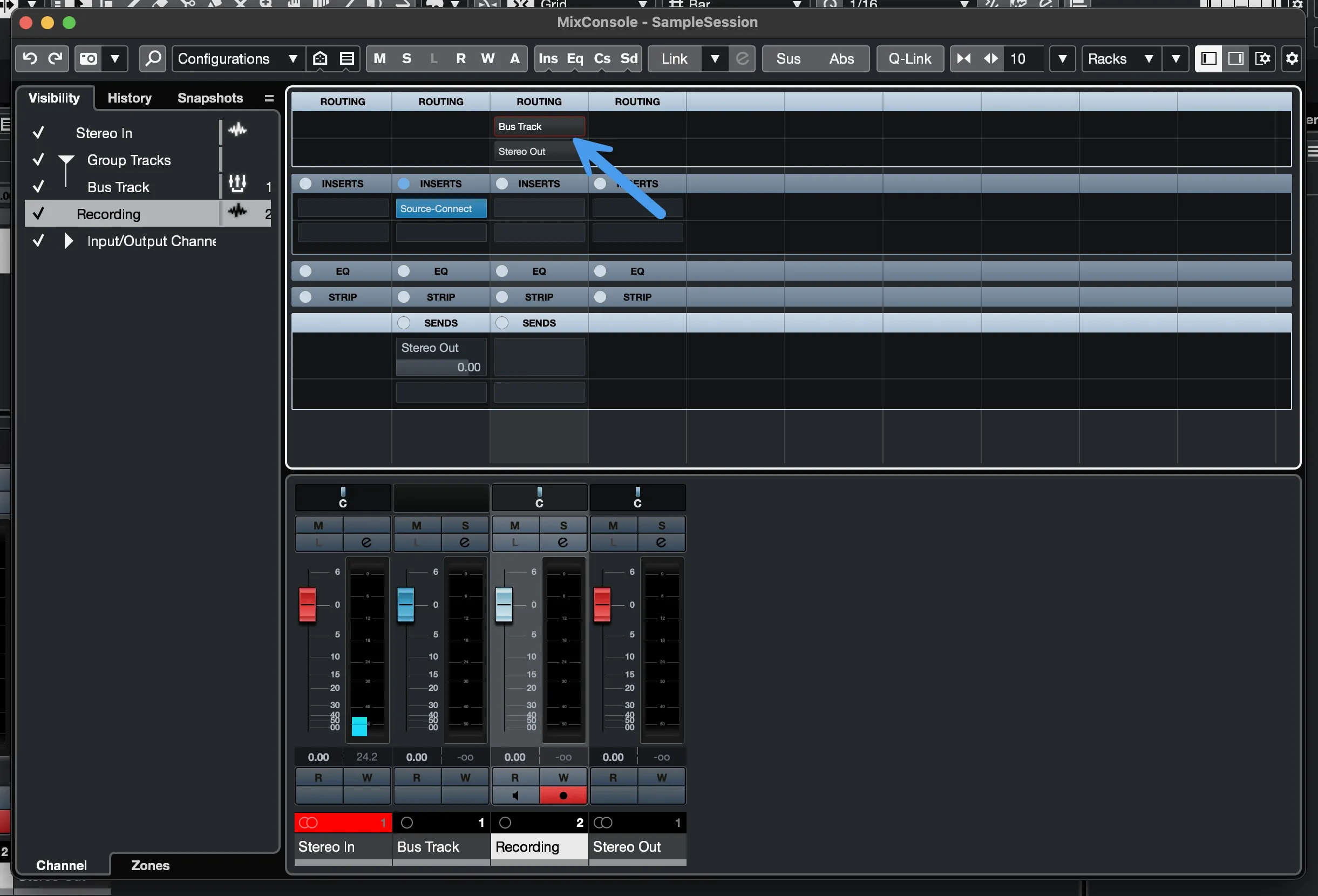
In Source-Connect 4, open Settings and select the named plug-in instance as the audio output. Set the channel count to mono for this example.
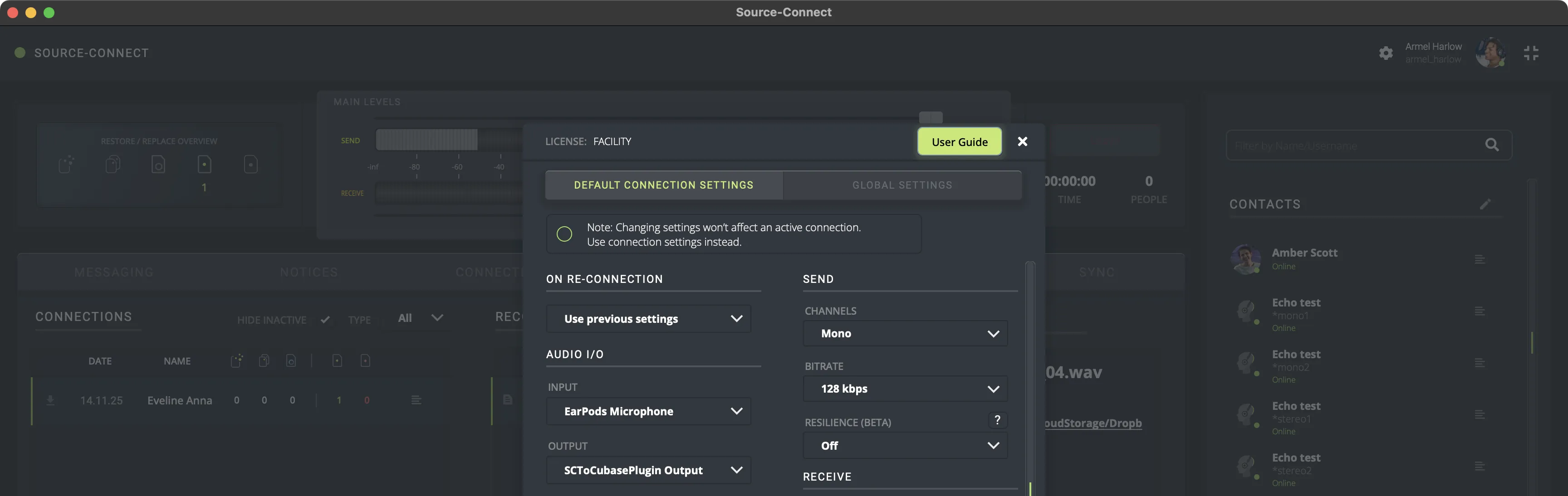
Log into your account, select a contact in the Contacts panel, and connect. Arm the Record track and start recording in Nuendo. For a complete example including Restore/Replace, see the Cubase/Nuendo recording guide.
About the Group Channel
The Group Channel affords you more flexibility within your session. In this recording example, it carries incoming audio from Source-Connect to the Record track. Configure your microphone as an input in Source-Connect so the connected party can hear you.
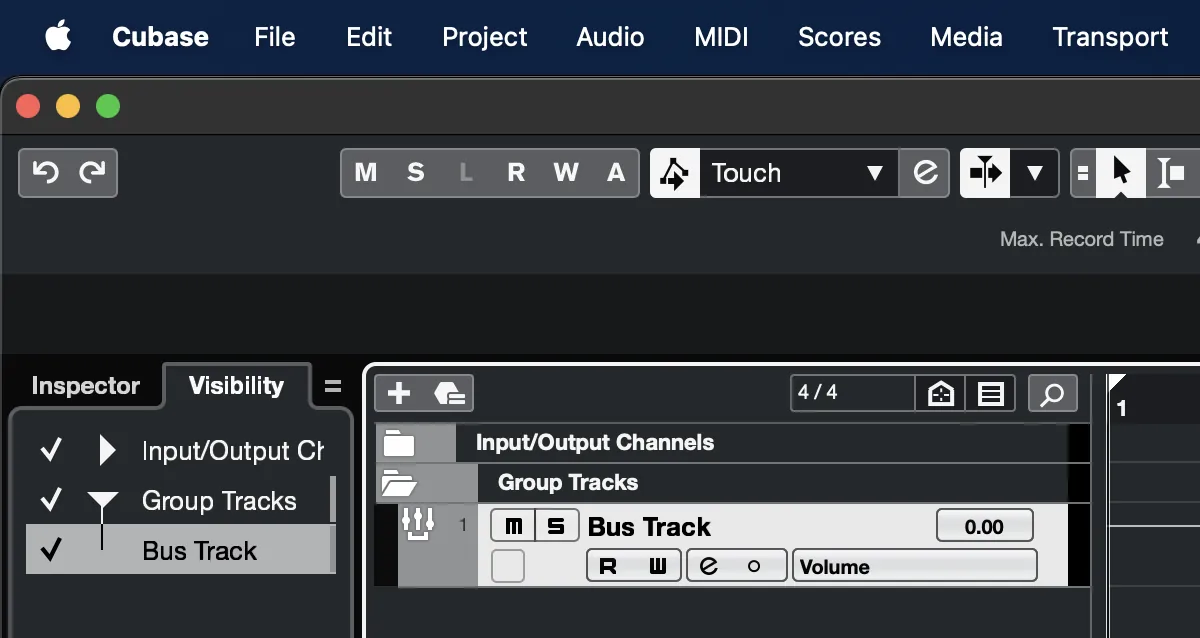
The following example shows a Group Channel named Bus Track in Nuendo:
For routing additional tracks to a connected party, see the Source-Connect I/O use cases.
This will allow the connected party to perform along with your pre-recorded mix. Please note that anything you record will be out of sync with your pre-recorded audio due to internet latency. Simply slide the newly recorded audio back in time so it is in sync with the other tracks.
Related Articles
Table of Contents