
Configuring your Settings in Source-Connect Studio/Facility
The “Settings” panel is available once you click the gears icon in the top right-corner of the screen. These settings are applied the first time you connect with each individual user, and, subsequently, are only applied when you restart the application, or when reconnecting to your connection partner.
There is a separate set of connection settings, the Connection settings, available in the CONNECTIONS menu, which you can modify and apply during calls without restarting the application.
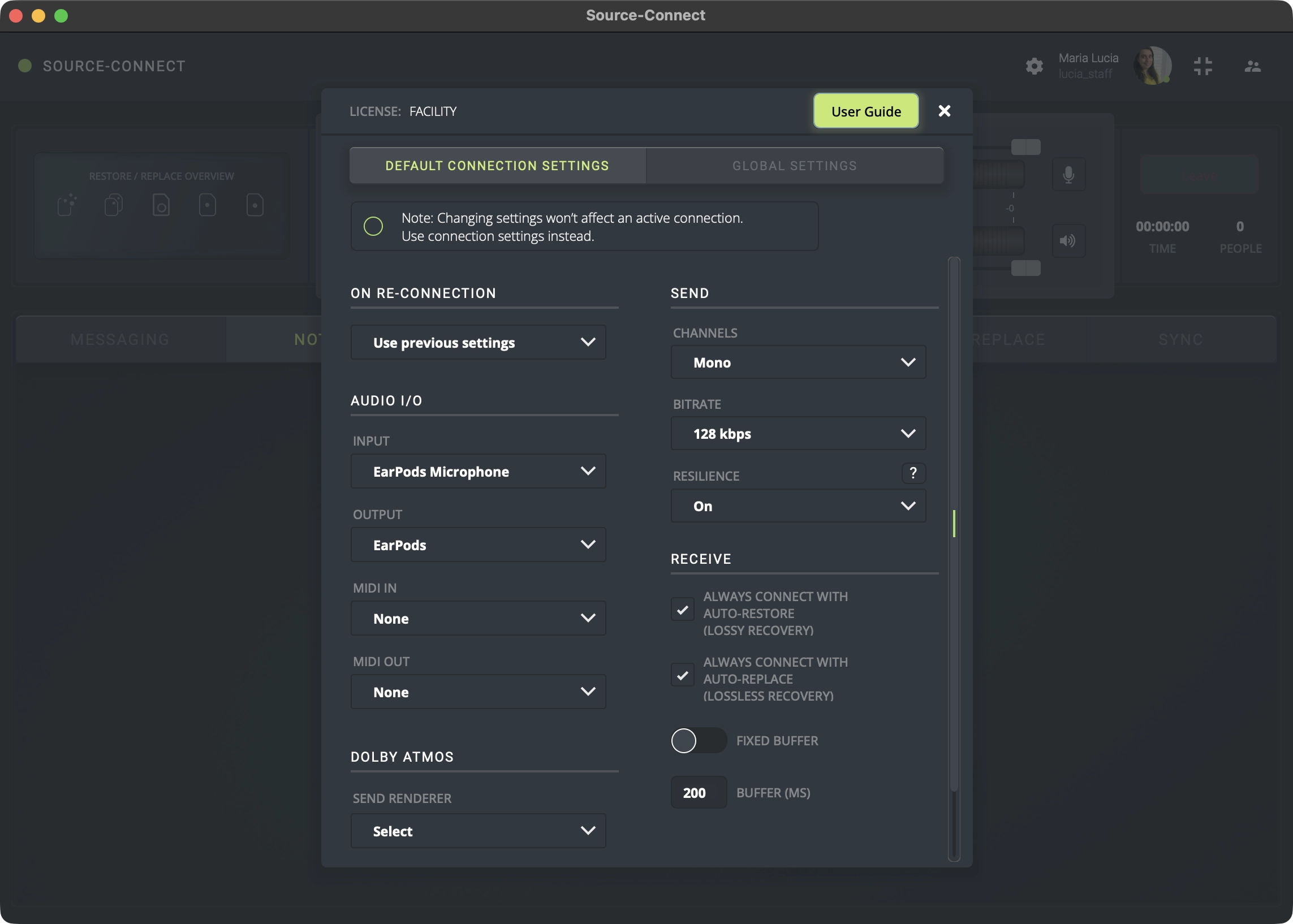
When you access the menu, there are two sets of settings available:
-
Default Connection Settings: you can configure these globally, and they will be applied
whenever a new session is started.
- On re-connection: if the call with your connection partner drops, Source-Connect will:
- Use previous settings, as defined in your Connection Settings during a call.
- Use default settings, as defined in the Default Connection Settings modal.
-
Audio I/O settings:
- Input: the hardware or virtual device being used to send sound.
- Output: the hardware or virtual device being used to receive sound.
- MIDI IN: the MIDI device being used to send sound.
- MIDI OUT: the MIDI device being used to receive sound.
-
Send settings:
- Channels: mono (single-channel audio), stereo (dual-channel audio), or up to 24 channels.
- Bitrate: depending on your channel configuration, from 32kbps (mono) up to 6144kbps for 24 channels.
- Resilience: by default, will be “off”. Turning it on enables real-time error correction that eliminates the effects of packet loss and jitter.
-
Receive settings:
- Always connect with Auto-Restore (lossy recovery): checking this box will turn on the Auto-Restore feature. You can learn more about restore and replace in this section.
- Always connect with Auto-Replace (lossless recovery): checking this box will turn on the Auto-Replace feature.
-
Fixed buffer: the fixed buffer (formerly known as the “Auto” buffer option),
will turn on the buffer automatically if needed.
- Buffer: the buffer size will establish how long the audio data you are receiving is held in reserve to allow late data to catch up before it is played or heard. You should turn on the buffer if you are hearing dropouts in the audio.
-
Dolby Atmos: as of Source-Connect 4.1, Source-Connect Facility includes an integration with the Dolby Atmos Renderer.
- Send Renderer: for the sending side, the dropdown will display the IP address of the Dolby Atmos Renderer.
- Receive Renderer: for the receiving side, the dropdown will display the IP address of the receive renderer.
- On re-connection: if the call with your connection partner drops, Source-Connect will:
-
Global Settings: the general settings are related to the way the Source-Connect
application works and interacts with you.
-
General settings:
- Always on top: Source-Connect will appear as a floating window on top of other programs. This is useful when you are working in Pro Tools for example, and want to monitor the connection. This option helps to make Source-Connect ‘feel’ like a plug-in.
- Show offline contacts: if you find your Contacts list has become rather long, you can make it more manageable by unselecting the ‘Show offline contacts’ checkbox. This will now only show any of your Contacts who are logged in and can make it much easier to find the Contact you are looking for when starting a session.
- Auto-login: when auto-login is checked, you are automatically logged in with your existing settings intact upon initializing Source-Connect. Each time you open a session with Source-Connect enabled, and auto-login checked, you will be automatically logged in and be ready to connect.
- Automatically check for updates: toggling the slider will enable automatic updates for Source-Connect.
-
Notifications:
-
On connection request: there are three options available:
- Ask: for all connections, ask me if I want to accept the call.
- Accept last: the last person I accepted, always automatically accept them again.
- Accept all: always automatically accept calls.
- Alert volume: turning on the alert volume setting will alert you whenever the volume goes above specific decibels. The options range from 0db to -25db in 5db increments.
- Repeat alert: alerts will be repeated until the connection times out.
-
On connection request: there are three options available:
-
Preferences
- Roster contact style: how you want your contacts to be displayed on your Source-Connect roster list. By default, this will be set to "Name and User ID". The available options are Name and User ID, Only Name, Only User ID.
- Help improve Source Elements: a slider, off by default, which allows Source Elements get data regarding application usage and errors. For more information, please visit our Privacy Policy.
-
Network:
- Allowed receive streams: by default, set to "Allow all". The options are:
- Allow all: allow both Source-Stream and P2P only.
- Force Source-Stream: if enabled, the Source-Stream service will take care of routing the signal for users if you they don't have the ability to establish a direct connection due to firewall-related issues.
- Force Peer to Peer (Source-Connect Facility only): this will effectively block Source-Stream.
Please note that if your connection partner has opted to force or block Source-Stream and you have the opposite option selected, you will see error 208.
- Use custom network settings: this will enable the option for you to choose a different IP. It is especially helpful when using a VPN or using a specific IP to connect.
- Network device: the IP address of the device you are using.
- Use port range: set up a port range for Source-Connect and test it out.
-
Proxy mode: this mode allows you to configure the specific IP address you want
your inbound calls to arrive to. This is relevant inside corporate networks where your IP
address may be incorrectly reported to our API.
- IP Address: the IP to receive inbound streaming data.
- Allowed receive streams: by default, set to "Allow all". The options are:
-
General settings: