
The Source-Nexus Review plugin controls at a first glance
When you first drop the Source-Nexus Review plugin onto a master track on your DAW, you will see the Source-Nexus Review user interface. The plugin’s look might look different on different DAWs, but it will always have the same functionalities.
You will see two sets of controls:
- Controls for the level meter components
- Controls specific to Source-Nexus Review
The following diagrams will include quick, summarized information. For more detailed information on each of the controls, click on the hyperlinks under the diagrams.
Level Meter Component Controls
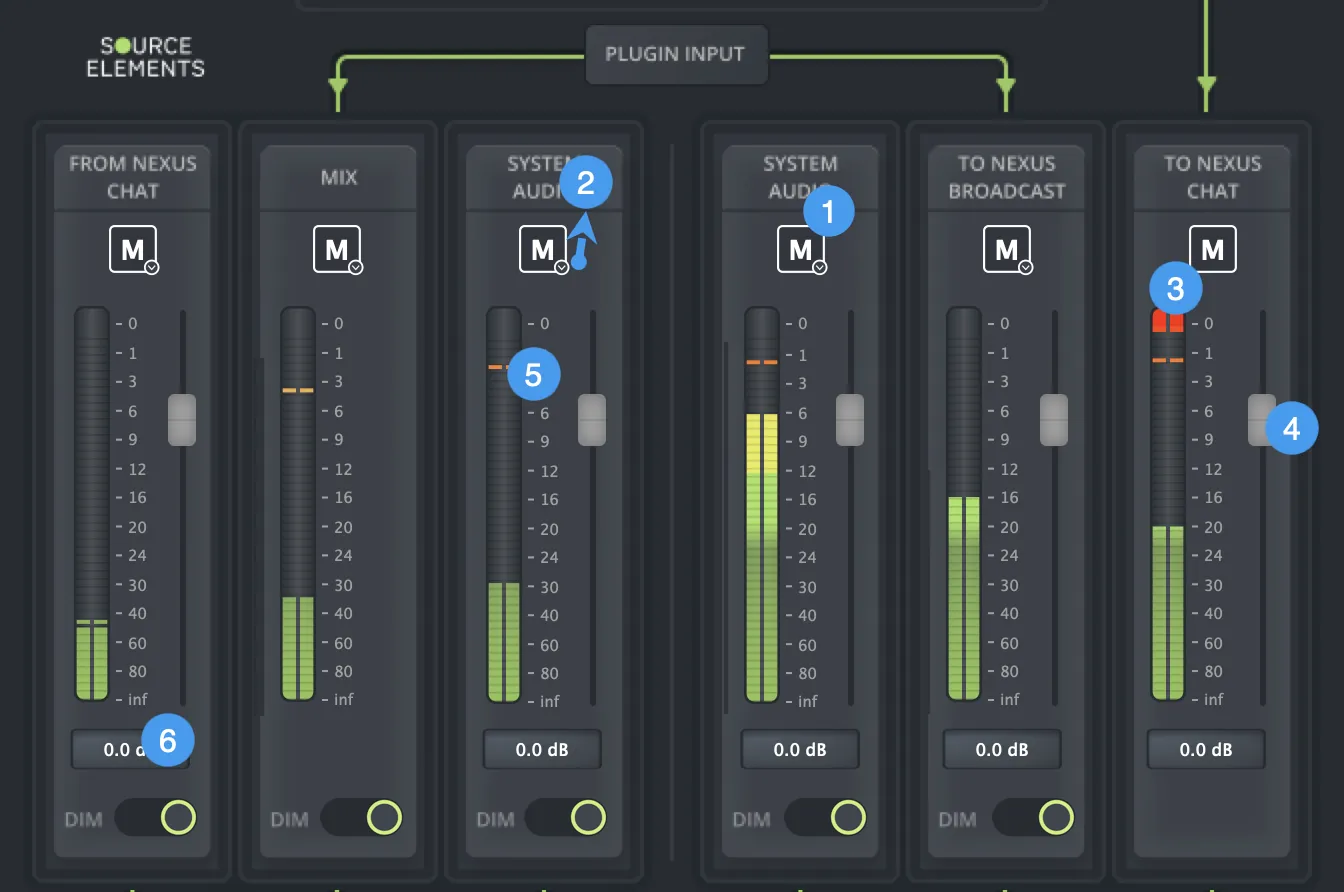
- Mute buttons: each channel has a mute button, clicking this button will mute the output of that channel.
-
Mute-On buttons: as of version 1.5.4,
all channels (except "To Nexus Chat") have been replaced with Mute-On buttons. The "To Nexus Chat"
button is still a regular mute button because of the Talkback switch, which already has all the Mute-On
functionality. All buttons include:
- On Play: the actions available when the audio is playing on the track where the plugin is placed. Available actions are Do Nothing, Mute, and Unmute. The default action is “Do Nothing” for On Play.
- On Record: the actions available when recording is on for the track where the plugin is placed. Available actions are Do Nothing, Mute, Unmute. The default action is “Do Nothing” for On Record.
- On Stop: the actions available when the track in which the plugin is placed is idle/stopped. Available actions are Do Nothing, Mute, Unmute. The default action is “Do Nothing” for On Stop.
- On Key: the actions available when the configured key is pressed. Available actions are Do Nothing, Mute, Unmute, Key momentary: none (click to set new key), Key latch: none (click to set new key). You can set any combination of a key and modifiers (ctrl, alt, shift, cmd) as well. The default action is “Do Nothing” for On Key.
- On Midi: the actions when the configured MIDI key is pressed. Available actions are Do Nothing, Mute, Unmute, Midi momentary: none (click to set new key), Midi latch: none (click to set new key). The default action is “Do Nothing” for On Midi.
- Mute-On broadcaster
- Controls play state: set to "no" by default. If you click on it, the status will be updated to "yes".
- DAW or Plug-in: a list of all supported plug-ins or specific instances of the Mute-On broadcaster, if available.
- Clipping indicator: the red clipping indicator will stay red if there was any clipping in the audio.
- Fader: each channel has a volume fader that can be used to adjust the output level of the channel. Double click or alt/option+click it to set the fader to 0 dB. The amount of gain applied is displayed in the level display at the bottom of the channel.
- Peak hold: the highest level caught by Source-Nexus Review.
- Level display: the amount of gain being applied to the signal is displayed here. Double click to manually enter a value.
Source-Nexus Review Controls
Source-Nexus Review provides the following options:
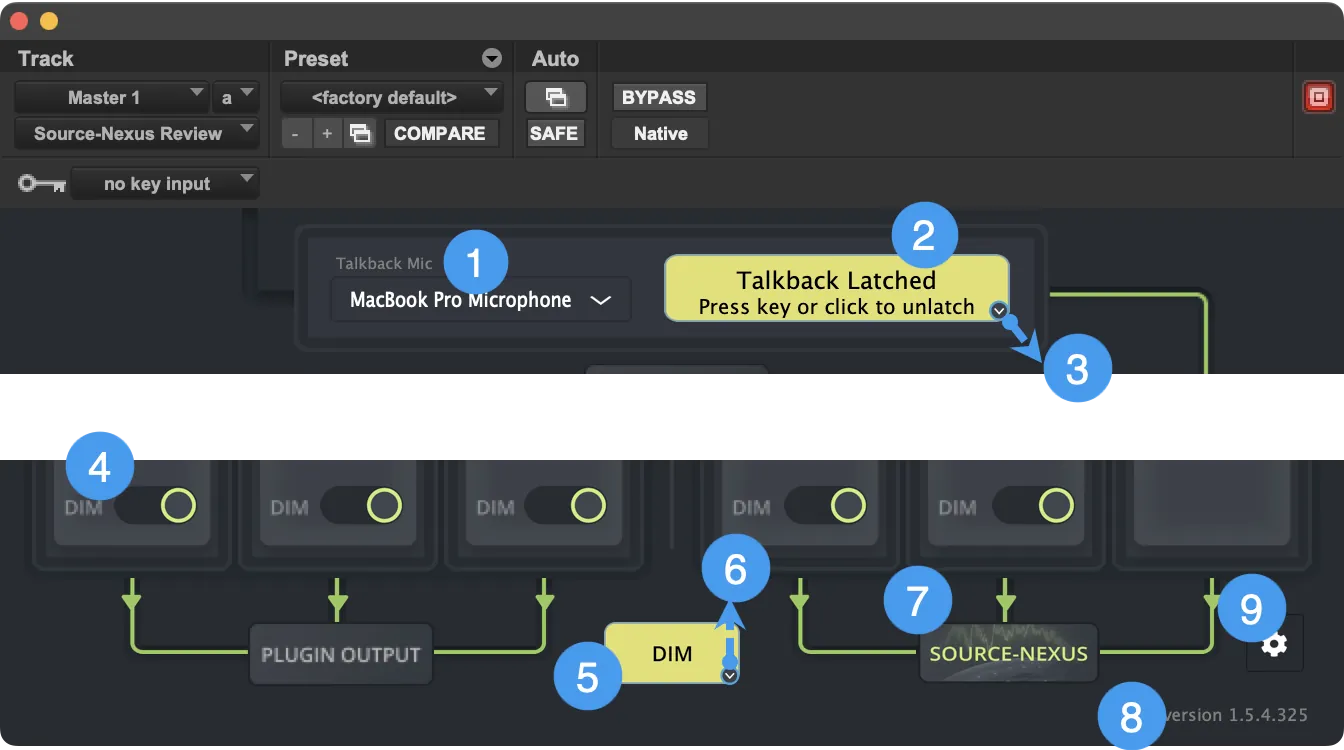
- Talkback microphone: select your microphone input to send into the chat. Selecting “same as system” will use the currently selected system audio input device. Selecting “use key input” will use the key input/sidechain input of the plugin.
- Talkback switch: press and hold the backslash key to open your talkback, and release it to close. Clicking the talkback button will latch the talkback open. When using the backslash key to control your talkback, channels with dim enabled will be automatically dimmed.
- Talkback switch Mute-On button: as of version 1.5.4, the Talkback switch has an
additional Mute-On button with the following functionalities:
- On Play: the actions available when the audio is playing on the track where the plugin is placed. Available actions are Do Nothing, Mute, and Unmute. The default action is “Do Nothing” for On Play.
- On Record: the actions available when recording is on for the track where the plugin is placed. Available actions are Do Nothing, Mute, Unmute. The default action is “Do Nothing” for On Record.
- On Stop: the actions available when the track in which the plugin is placed is idle/stopped. Available actions are Do Nothing, Mute, Unmute. The default action is “Do Nothing” for On Stop.
- On Key: the actions available when the configured key is pressed. Available actions are Do Nothing, Mute, Unmute, Key momentary: none (click to set new key), Key latch: none (click to set new key). You can set any combination of a key and modifiers (ctrl, alt, shift, cmd) as well. The default action is “Do Nothing” for On Key.
- On Midi: the actions when the configured MIDI key is pressed. Available actions are Do Nothing, Mute, Unmute, Midi momentary: none (click to set new key), Midi latch: none (click to set new key). The default action is “Do Nothing” for On Midi.
- Mute-On broadcaster
- Controls play state: set to "no" by default. If you click on it, the status will be updated to "yes".
- DAW or Plug-in: a list of all supported plug-ins or specific instances of the Mute-On broadcaster, if available.
- Dim selector: when the slider is ON, this channel will be dimmed when the global dim is engaged.
- Global Dim: clicking the dim button will temporarily lower the level of any channel with the dim selector turned on by 15 dB to make your talkback more audible over the mix and other audio and to help prevent feedback. Shift+down toggles the dim on and off. When using the backslash key to control the talkback switch, the dim is automatically engaged when the talkback is open.
- Global dim Mute-On button: as of version 1.5.4, the Talkback switch has an additional
Mute-On button with the following functionalities:
- On Play: the actions available when the audio is playing on the track where the plugin is placed. Available actions are Do Nothing, Unmute, and Dim. The default action is “Do Nothing” for On Play.
- On Record: the actions available when recording is on for the track where the plugin is placed. Available actions are Do Nothing, Unmute, and Dim. The default action is “Do Nothing” for On Record.
- On Stop: the actions available when the track in which the plugin is placed is idle/stopped. Available actions are Do Nothing, Unmute, and Dim. The default action is “Do Nothing” for On Stop.
- On Key: the actions available when the configured key is pressed. Available actions are Do Nothing, Unmute, and Dim, Key momentary: none (click to set new key), Key latch: none (click to set new key). You can set any combination of a key and modifiers (ctrl, alt, shift, cmd) as well. The default action is “Do Nothing” for On Key.
- On Midi: the actions when the configured MIDI key is pressed. Available actions are Do Nothing, Unmute, and Dim, Midi momentary: none (click to set new key), Midi latch: none (click to set new key). The default action is “Do Nothing” for On Midi.
- Button dim option, with a dB selector to adjust your dimming.
- Mute-On broadcaster
- Controls play state: set to "no" by default. If you click on it, the status will be updated to "yes".
- DAW or Plug-in: a list of all supported plug-ins or specific instances of the Mute-On broadcaster, if available.
- Source-Nexus launch button: this button will take you to the Source-Nexus landing page in your default web browser to start your session.
- Version number: the version of the Source-Nexus Review plugin that you are using. This is especially useful when contacting support in case of any issues.
- Preferences: additional settings for the plugin.
Source-Nexus Downmixer Controls
The surround audio downmixer is only available in the Source-Nexus Review plugin. It is not available in the Source-Nexus Review standalone application.
The downmixer for surround tracks in the Source-Nexus Review plugin has the following options:
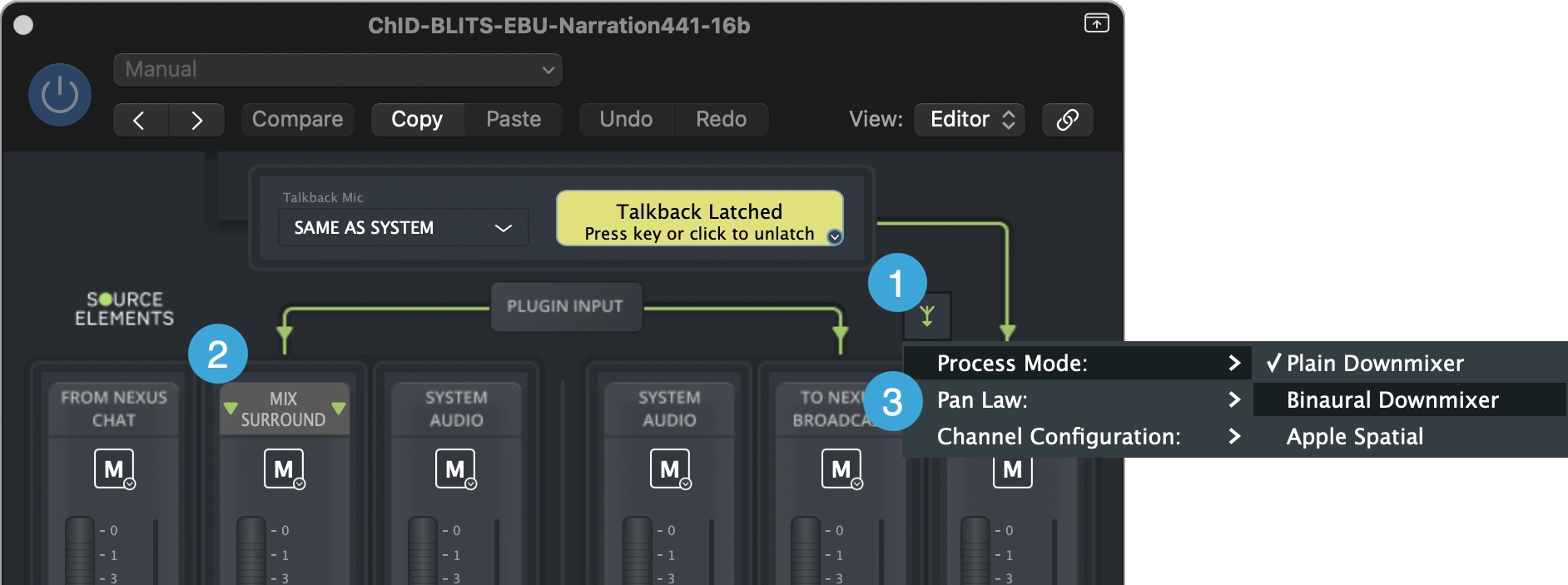
- Downmixer advanced view: by clicking this button, you will access the a more detailed view to adjust the individual channel settings in the downmixer
- A/B toggle: this button switches the mix monitor between surround audio and the downmixed stereo version so you can A/B test the two different mixes.
- Downmixer settings: right click the advanced settings button to access additional downmixer settings:
- Process mode: the type of output the downmixer will create for the review stream. The options are plain downmixer, binaural downmixer or Apple spatial.
- Pan law: the type of output the downmixer will create for the review stream. By default, it will be set to 3dB (constant gain) - other options include 0dB, 2.5dB, 4.5dB and 6dB.
- Channel configuration: the type of output the downmixer will create for the review stream. The options include discrete #6, 5.1 and 6.0 surround, 6.0 (music) surround and hexagonal.
- Apple Spatial rendering is only available on macOS 10.15 and newer - there is no Windows support.
- Binaural rendering is only available on macOS 12 and newer. It is also supported on Windows 10 and 11.