
The Source-Nexus I/O plugin at a first glance
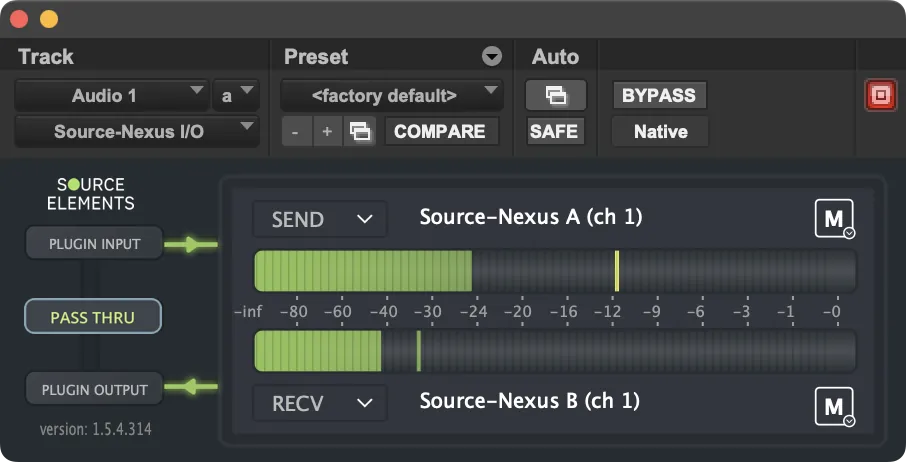
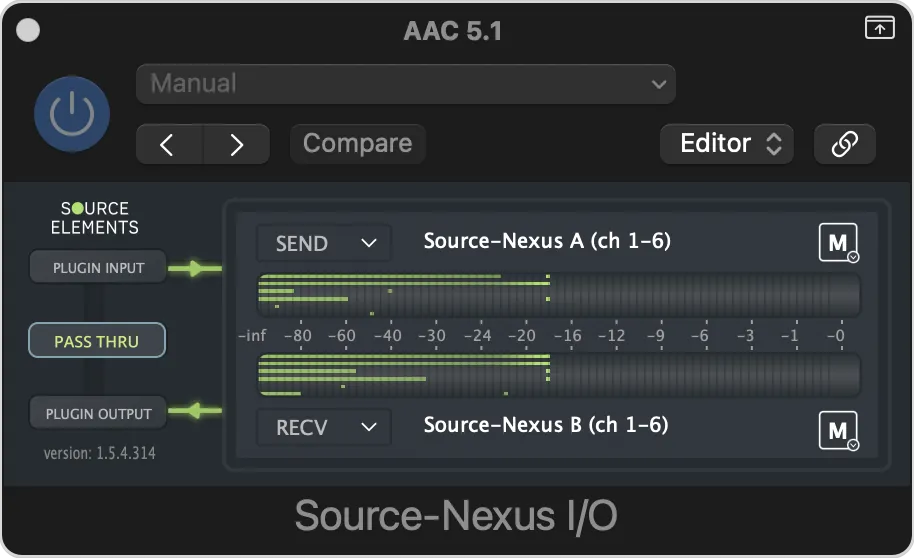
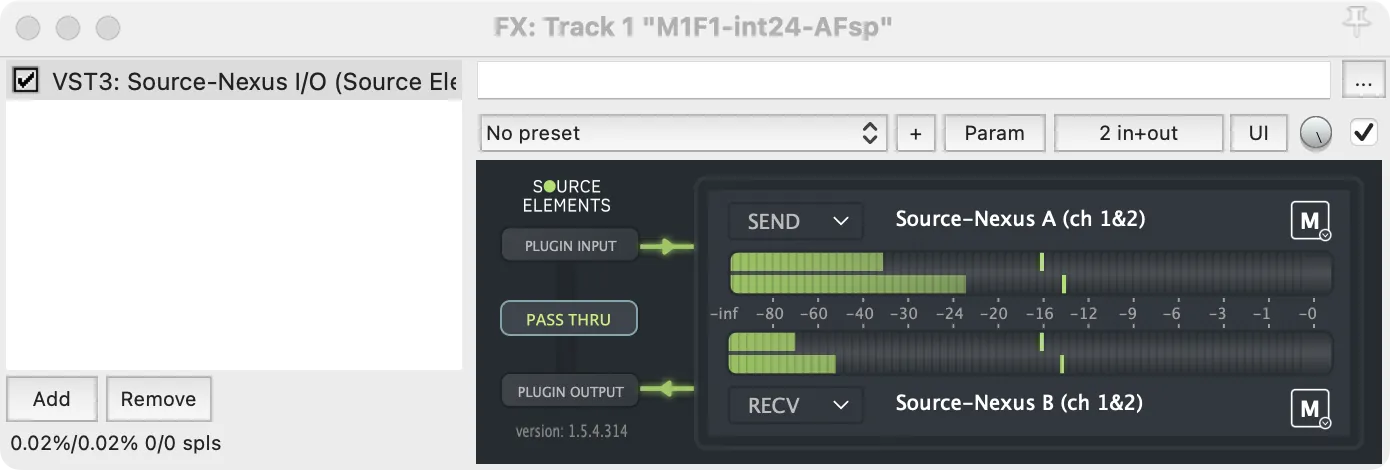
This article is part of the Source-Nexus I/O User GuideWhen you first drop the Source-Nexus I/O plugin onto a track on your DAW, you will see the Source-Nexus I/O user interface. The plugin’s look might look different on different DAWs, but it will always have the same functionalities.
Down below, you will see the Source-Nexus I/O interface in Pro Tools 2025.10 (for a mono track), in Logic Pro 11.2.2 (for a 5.1 surround track), and in Reaper v7.59 (for a stereo track) respectively.
 |
 |
 |
|
In addition to the controls available within each DAW (which you will see above the Source-Nexus I/O interface), Source-Nexus I/O provides the following options:
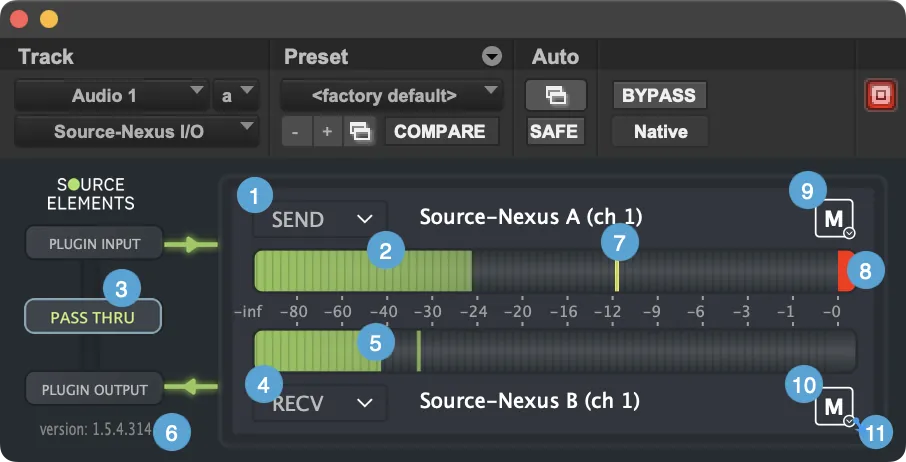
- SEND: contains the list of devices (either physical or virtual) available for you to select as your send device. This is the device you will use to send audio out from your DAW into your chosen application or system. By default, after installing Source-Nexus I/O, you will see “Source-Nexus A” selected as the send device. You can find some basic routing information here.
- SEND level meter: displays your send level. If the meter moves into the orange or red areas of the meter, you are likely to experience sound distortions and a lower quality of your signal.
- THRU: disables the RECV end of the plugin, and sends the plugin input signal (also the “SEND” signal) to the plugin output. Normally, a track in a DAW would route the input through the plugins, then to the output, but these plugins break that route. Clicking THRU enables it again, while disabling RECV. This is useful if you place the plugin on the Master Fader track in order to send out your master mix while still hearing it.
- RECV: contains the list of devices (either physical or virtual) available for you to select as your receive device. This is the device you will use to receive audio into your DAW from another application or system. By default, after installing Source-Nexus I/O, you will see “Source-Nexus B” selected as the receive device. You can find some basic routing information here.
- RECV level meter: displays your receive level. If the meter moves into the orange or red areas of the meter, you are likely to experience sound distortions and a lower quality of your signal.
- Version Number: the version of the Source-Nexus I/O plugin that you are using. This is especially useful when contacting support in case of any issues.
- Peak hold: an indicator of the highest level caught by Source-Nexus I/O. In the case of stereo or surround, they will show up as single pixel dots.
- Clipping indicator: the red clipping indicator will stay red if there was any clipping in the audio.
- Send mute buttons to silence the send of the Source-Nexus I/O driver.
- Receive mute buttons to silence the receive of the Source-Nexus I/O driver.
- Mute-On functionalities, including:
- On Play: the actions available when the audio is playing on the track where the plugin is placed. Available actions are Do Nothing, Mute, Dim and Unmute. The default action is “Do Nothing” for On Play.
- On Record: the actions available when recording is on for the track where the plugin is placed. Available actions are Do Nothing, Mute, Dim and Unmute. The default action is “Do Nothing” for On Record.
- On Stop: the actions available when the track in which the plugin is placed is idle/stopped. Available actions are Do Nothing, Mute, Dim and Unmute. The default action is “Do Nothing” for On Stop.
- On Key: the actions available when the configured key is pressed. Available actions are Do Nothing, Mute, Dim and Unmute, Key momentary: none (click to set new key), Key latch: none (click to set new key). You can set any combination of a key and modifiers (ctrl, alt, shift, cmd) as well. The default action is “Do Nothing” for On Key.
- On Midi: the actions when the configured MIDI key is pressed. Available actions are Do Nothing, Mute, Dim and Unmute, Midi momentary: none (click to set new key), Midi latch: none (click to set new key). The default action is “Do Nothing” for On Midi.
- Mute-On broadcaster
- Controls play state: set to "no" by default. If you click on it, the status will be updated to "yes".
- DAW or Plug-in: a list of all supported plug-ins or specific instances of the Mute-On broadcaster, if available.