
The Source-Nexus Gateway Layout
This article is part of the Source-Nexus Gateway User GuideBased on your feedback, we simplified and restructured the control and component locations to give you more room for your shared content and video feeds. While Source-Nexus Gateway also includes legacy support for the Source-Live Low-Latency HD video viewer, there are new layouts to learn about.
The Source-Nexus Gateway layout is comprised of various components which can be independently viewed or dynamically mixed according to your needs:
- Viewer controls, such as in-meeting chat, microphone and speaker configurations, camera settings, and others.
- Screen-sharing capabilities, allowing you to share your entire screen, a browser tab, or specific windows.
- Specific host controls - such as a second audio input for you to use in case of remote mix review sessions.
- Source-Live controls, including picture-in-picture, full screen, and buffering options.
Viewer chat and Screen-sharing Layout
Here is a quick breakdown of the controls and displays in the Source-Nexus Gateway. You can find detailed information on each of these in the controls description section for viewers.
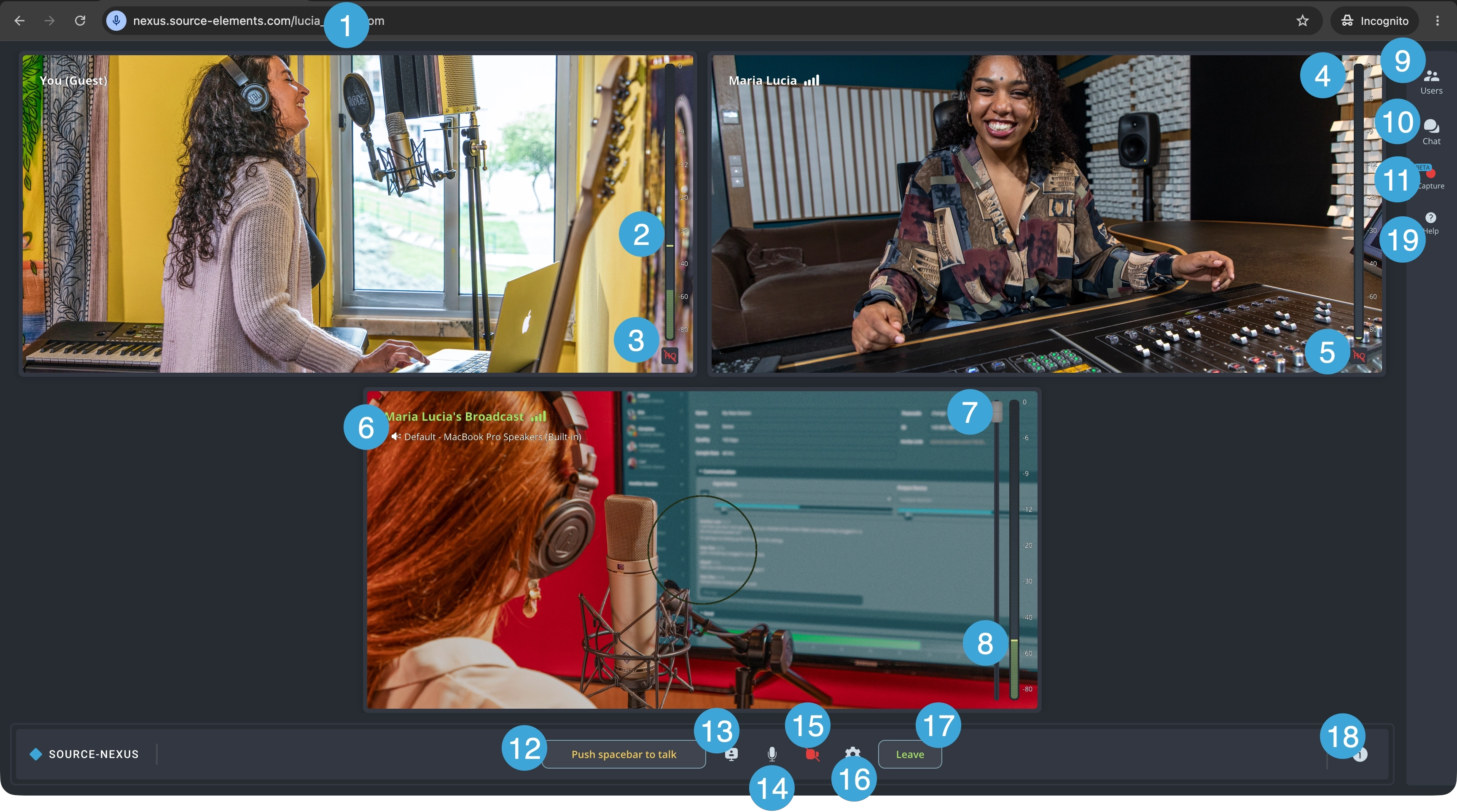
| 1. Call ID | 2. Your level meter | 3. Your HQ indicator. | 4. Level meter for other participants |
| 5. HQ indicator for other participants | 6. Broadcast widget | 7. Volume fader for broadcast | 8. Level meter for broadcast |
| 9. Users panel | 10. Chat panel | 11. Capture panel | 12. Push spacebar to talk |
|
13. Screen sharing icon |
14. Mic on/off |
15. Camera on/off |
16. Chat settings |
|
17. Leave button |
18. Host information |
19. Help |
Source-Nexus Gateway Audio Broadcaster Layout
Here is a quick breakdown of the controls and displays in the Source-Nexus Gateway audio broadcast component. You can find detailed information on each of these in the controls description section for broadcasters.
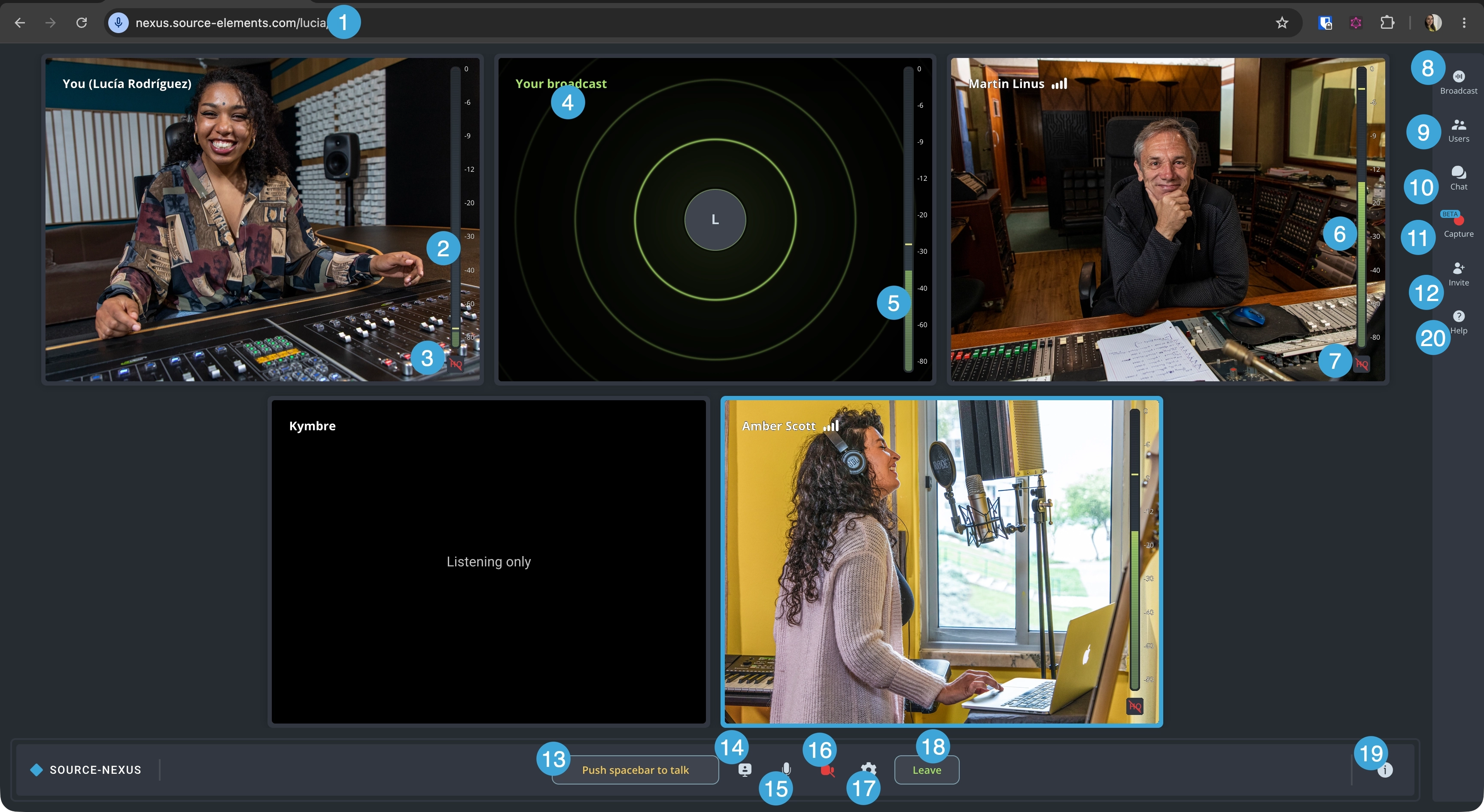
| 1. Call ID | 2. Your level meter | 3. Your HQ indicator | 4. Your broadcast widget |
| 5. Your broadcast level meter | 6. Level meter for other participants | 7. HQ indicator for other participants | 8. Broadcast panel |
| 9. Users panel | 10. Chat panel | 11. Capture panel | 12. Users panel |
| 13. Push spacebar to talk | 14. Screen sharing icon | 15. Mic on/off | 16. Camera on/off |
| 17. Chat settings | 18. Leave button | 19. Host information |
20. Help |
Source-Live Low Latency Video components
Here is a quick breakdown of the controls and displays in the Source-Live Low-Latency video broadcast component. You can find detailed information on each of these in the controls description section for Source-Live.
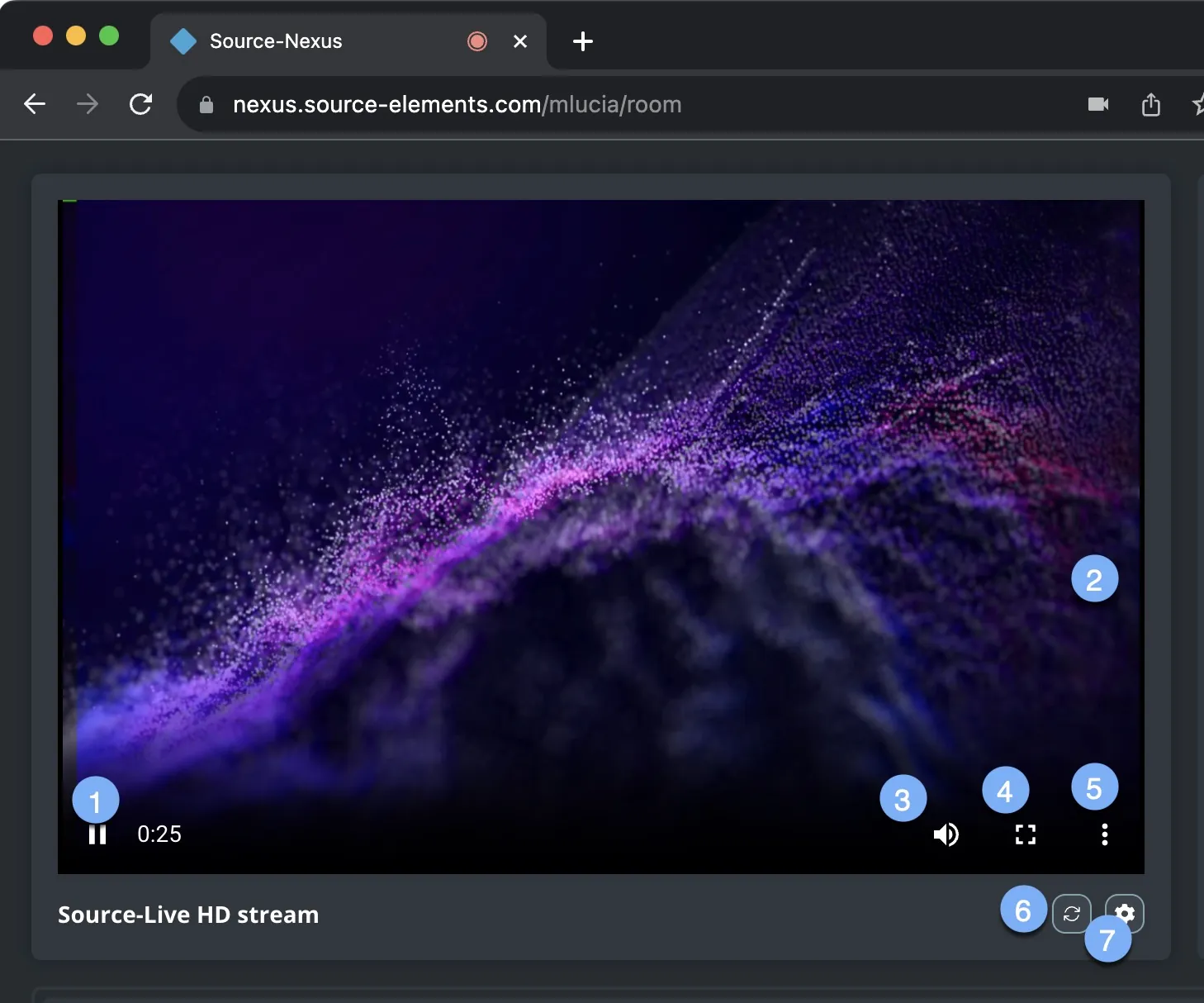
| 1. Play/pause broadcast | 2. Screen-sharing | 3. Audio Control | 4. Full screen |
| 5. Picture-in-picture | 6. Settings | 7. Refresh stream |