
This article collects common checks for Source Elements Recorder. Use it when recording, browser access, uploads, or playback are not behaving as expected.
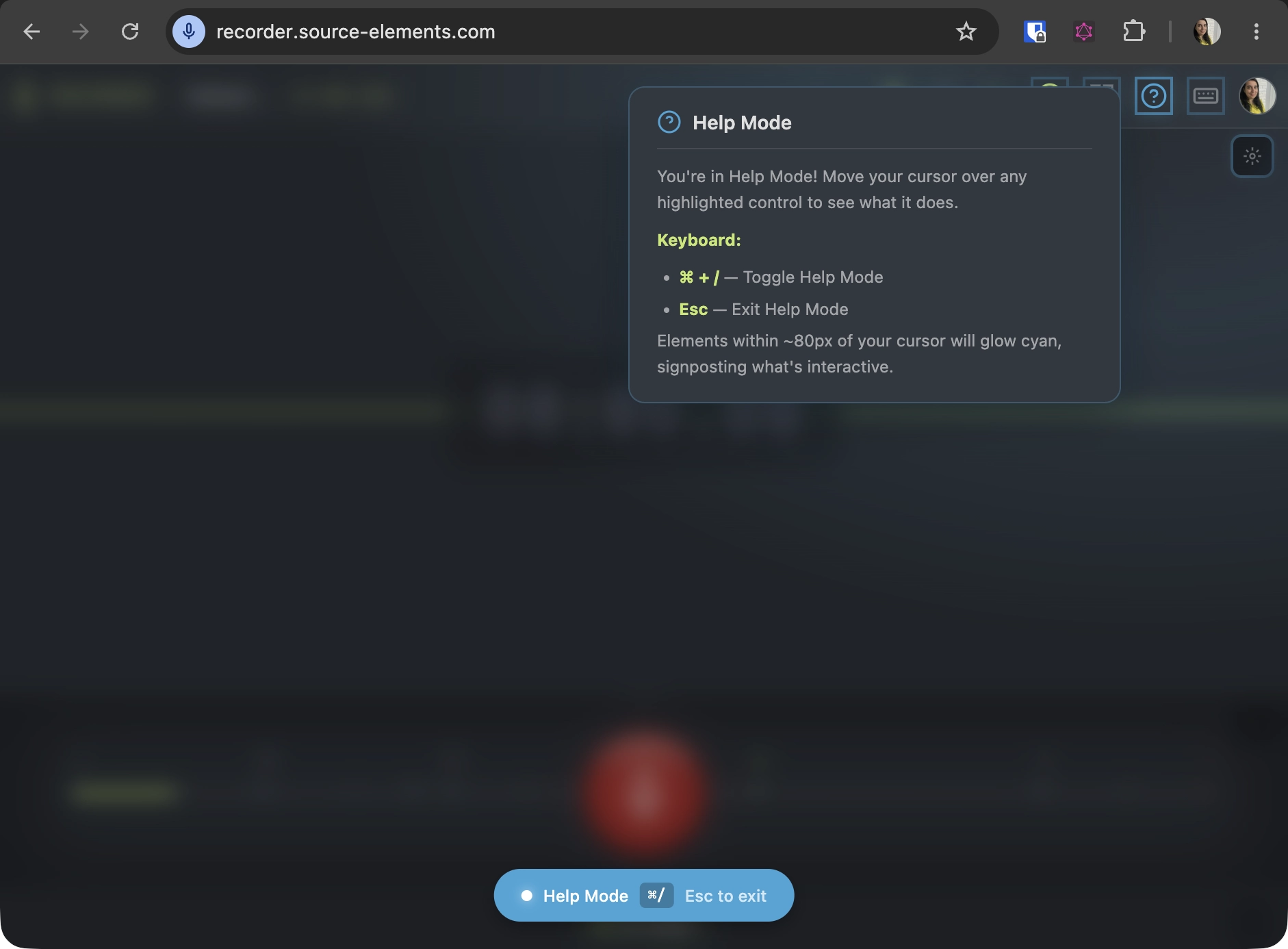
All Source Elements Recorder documentation in the web application can be accessed by turning on Help Mode.
Before you start
- Make sure you are using a supported browser and the latest available version.
- Confirm that your microphone, camera, and speaker permissions are enabled for Source Elements Recorder.
- Close other applications that may be using the same audio or video devices.
- Check your internet connection before starting or resuming a recording upload.
Clear browser cache and cookies
If Source Elements Recorder loads incorrectly, shows stale session information, or continues to behave unexpectedly after refreshing, clear your browser data for the site.
Before clearing cookies or cache, fully restart your browser. Quit the browser completely, open it again, and then follow the steps below.
- Open Source Elements Recorder in your browser.
- Open the browser settings for site data, privacy, or cookies.
- Clear cookies and site data for Source Elements Recorder or for source-elements.com.
- Clear cached images and files.
- Reload the Recorder page and sign in again.
If your browser supports a hard reload, you can also use it after restarting the browser. In Chrome or Edge, open Developer Tools, right-click the reload button, and choose Empty Cache and Hard Reload. In Firefox, use Ctrl+F5 on Windows or Cmd+Shift+R on macOS.
Browser-specific steps
Google Chrome
- Quit Chrome completely, then open Chrome again.
- Open the Chrome menu and choose Delete browsing data.
- Choose a time range. For a full reset, choose All time.
- Select Cookies and other site data and Cached images and files.
- Click Delete data, then reload Source Elements Recorder and sign in again.
For Chrome's current instructions, see Google's pages for clearing cache and cookies, deleting browsing data, and managing cookies for specific sites.
Brave
- Quit Brave completely, then open Brave again.
- Go to Settings > Additional settings > Privacy and Security > Delete browsing data.
- Use the Advanced tab to choose the data to remove.
- Select cookies/site data and cached files, then click Clear data.
- To clear only the current site, click the icon to the left of the address bar, open cookies/site data or site settings, delete the stored data, and refresh the page.
For Brave's current instructions, see How Do I Clear Cookies And Site Data In Brave?.
Safari
- Quit Safari completely, then open Safari again.
- Choose Safari > Settings, then click Privacy.
- Click Manage Website Data.
- Select the affected Source Elements website and click Remove, or click Remove All if needed.
- Click Done, then open Source Elements Recorder again in a normal browser window.
For Safari's current instructions, see Apple's pages for clearing cache and cookies and checking website cookies, caches, and other data when Safari does not work as expected.
Opera
- Quit Opera completely, then open Opera again.
- Go to Settings > Privacy & security > Delete browsing data.
- Select a time range and choose cookies/site data and cached images/files.
- Click Clear data.
- For a hard reload, hold Shift and click reload, press Ctrl+F5 on Windows/Linux, or press Cmd+Shift+R on macOS.
For Opera's current instructions, see Opera Help for deleting browsing data and the Opera FAQ entries for clearing cookies, cache, and hard-reloading a page.
Firefox
- Quit Firefox completely, then open Firefox again.
- Open the menu and choose Settings.
- Go to Privacy & Security and find Cookies and Site Data.
- Click Clear Data.
- Select cookies/site data and temporary cached files/pages, then click Clear.
For Firefox's current instructions, see Mozilla Support for clearing cookies and site data and clearing the Firefox cache.
Microsoft Edge
- Quit Edge completely, then open Edge again.
- Go to Settings and more > Settings > Privacy, search, and services.
- Under Clear browsing data, choose Choose what to clear.
- Select a time range, then select cookies/site data and cached images/files.
- Click Clear now, then reload Source Elements Recorder.
For Edge's current instructions, see Microsoft Support for viewing and deleting browsing history and data and browsing data and privacy in Microsoft Edge.
Contact support
If the issue continues, contact the Source Elements support team with your account ID, browser version, operating system version, and a short description of what happened.