
Source Elements Labs - Source-Nexus Gateway v1
Source Elements Labs is your gateway to experimental features before they reach production. Help shape the tools that define tomorrow's workflows.
1. Introducing Source Elements Labs - Source-Nexus Gateway
What is Source Elements Labs - Source-Nexus Gateway - This is an exclusive preview application that gives select users early access to cutting-edge features and improvements coming to Source-Nexus Gateway’s web-based interface for real-time audio and video collaboration. As a beta testing initiative, it serves as the proving ground where innovations for the main Source-Nexus Gateway app can be refined and tested today.
Who it’s for - Source Elements Labs - Source-Nexus Gateway is designed for any Source-Nexus Suite users who are passionate about collaboration and want to shape its future while providing feedback. Ideal candidates include audio individuals who need professional-grade audio quality for remote collaboration - something consumer tools like Zoom or Skype can’t provide. They're willing to use specialized software because audio quality and low latency are critical to their work.
Why you need it - By joining the Labs beta program, you gain exclusive access to breakthrough features months or even years before they are available to everyone else. You’ll experience enhanced audio quality improvements, streamlined workflows, and experimental features that could revolutionize how you capture remote conversations. Your feedback directly influences which features make it to the final release and how they're refined.
How you can access it - You can access the Labs version of the Source-Nexus Gateway through the following URL: https://labs.source-elements.com/
What you will find in this document - This article will include setup guides and overviews for the features included in the Labs version of Source-Nexus Gateway. For an overview of other existing features in Source-Nexus Gateway, please visit Source Nexus Gateway User Guide and read through the guide.
About Source-Nexus™
Source-Nexus Gateway is a web-based interface where you and your clients meet together at the same time to review, approve, and collaborate in the highest-definition audio and video available on browser platforms today. Along with a new low-latency audio review, Source-Nexus Gateway merges the Source-Live video viewer, video chat, and text chat with additional features of talkback, screen-sharing, and host controls to offer a unique, easy way to invite viewers via a dynamic web interface.
2. What's new in this Release (V1)
This first release of Source Elements Labs - Source-Nexus Gateway includes two new major features:
Redesigned User Interface
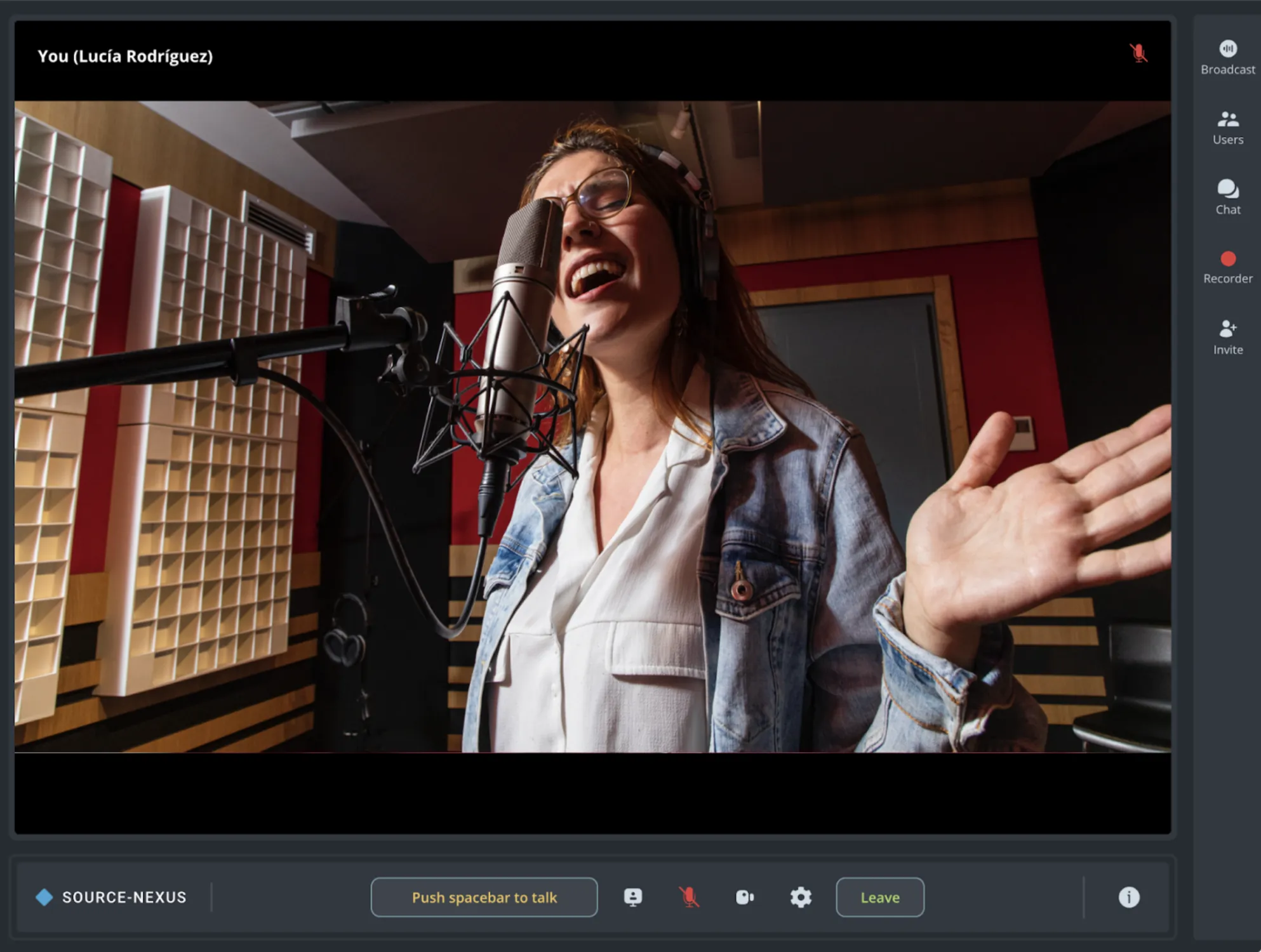
The Source-Nexus Gateway interface now features a fresh, modern UI that makes remote collaboration even more intuitive and efficient. All of the powerful features in the public Source-Nexus Gateway version are intact - you will just notice a cleaner layout and a more streamlined workflow.
Enhanced Recorder Feature
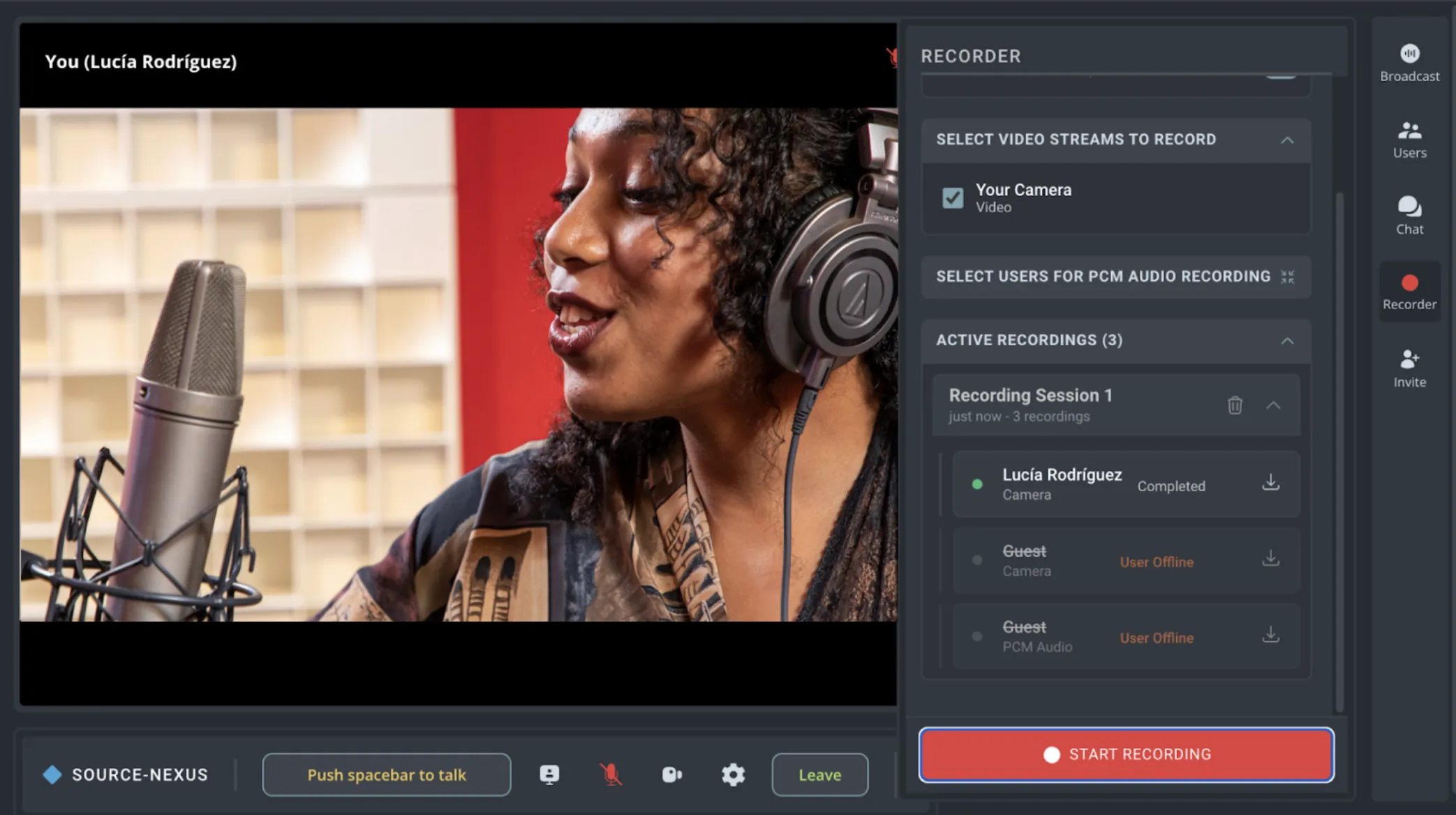
The existing recorder tool in the Source-Nexus Gateway has been significantly enhanced and optimized to allow users to select between two recording modes to capture high-quality audio and video directly within the application.
3. System Requirements
Your viewers will require at least as much download bandwidth as the stream quality settings for each component. When working with audio only and no video, generally we recommend at least 1MB of upload and download speed, but more is always better in streaming configurations.
Important: 4G and LTE cellular networks generally support Source-Nexus Gateway streams. Note, however, that streaming HD video will consume significant bandwidth! We do not recommend viewers use their 4G or LTE connection to stream Source-Nexus Gateway with video chat or screen-sharing enabled, except when absolutely necessary.
When receiving a broadcast, it is necessary to use:
- macOS: Chrome, Firefox, Safari, Opera, and any Chrome variants
- Windows: Chrome, Firefox, Opera, Edge, and any Chrome variants
- Mobile: Android (Chrome, Firefox) and iOS (Safari)
In non-Chrome browsers, set your default audio output in your System Preferences (Mac) or Control Panel (Windows). Guests and broadcast viewers will not need to have any plugins installed or download any software.
For mobile devices with small screens, such as smartphones, you will need to use the Source-Nexus web broadcaster in portrait mode. Landscape mode is not supported.
When streaming a Source-Nexus audio broadcast as a host, it is necessary to use Chrome, Opera, or Edge:
- macOS: Chrome and any Chrome variants
- Windows: Chrome, Opera, Edge, and any Chrome variants
- Mobile: Not supported
Please read through the following article for details on limitations when using Safari (macOS, iOS or iPadOS) with the Source-Nexus Gateway.
Network Configuration
To establish a connection from your computer to the world, the Source-Nexus Gateway uses the WebRTC protocol. No port forwarding is required.
Bandwidth
Source-Nexus Gateway requires an internet connection with a bandwidth of at least 300 kbps upload when in audio-only mode, and at least 1MB upload for video.
Your download speed does not really affect the capabilities of Source-Nexus Gateway when you are using the Audio Broadcaster only. The end experience for your client will completely depend on the processing power of your CPU and your internet connection to upload your stream at an acceptable speed.
For video chat and screen-sharing, you will need at least 1MB upload per video instance. For example, if you have a chat with 3 people, and you wish to also screen share, you need at minimum a dedicated 4MB upload.
We recommend testing your setup well ahead of time to ensure your system is configured properly for any streams you may have planned.
Because your streamed data is processed through a server, potential viewers all over the world can join your stream with ease. If you are experiencing bandwidth issues, this will likely be related to your network’s upload speed. Please refer to the Contacting Support article for further guidance.
Firewalls and Routers
While most networks allow Source-Nexus Gateway connections by default, if you are unable to log in, this most likely means your network is too restricted in order to make proper use of the Source-Nexus Gateway, and you should discuss further options with your IT department. You may need to configure your firewall and/or router if you are on a corporate network. Corporate networks may be able to provide QoS services to increase your application bandwidth. Please contact us for support on these matters.
Your remote viewer is unlikely to have any issues receiving your broadcast stream unless they are on a very restricted corporate network. In the unlikely event this occurs, please contact us for support.
4. Accounts and Licensing
This Source Elements Labs - Gateway release is included in the Source-Nexus Suite, which also means it follows the pricing and usage rules in the current Source-Nexus Gateway. You can read detailed information about them here: Selecting The Best Source Nexus Plan For Your Needs.
In summary:
- There is a free tier of the Source-Nexus Gateway, called Source-Nexus free. This version means that you only need a Source Elements account to use the web application. Your session will be audio-only, with broadcast quality (256kbps, OPUS, mono only).
- There are paid subscriptions (monthly, yearly and two-yearly). These include stereo, 512kbps, and separate stereo audio broadcast, in addition to video chat. Users can also screen share and integrate with Source-Live, a professional-grade flagship product of Source Elements.
iLok is not required for the Source-Nexus Gateway.
5. Redesigned User Interface
As mentioned above, this Source Elements Labs - Gateway release includes a new user interface with tab-like components that make it much easier to find your controls and a cleaner taskbar.
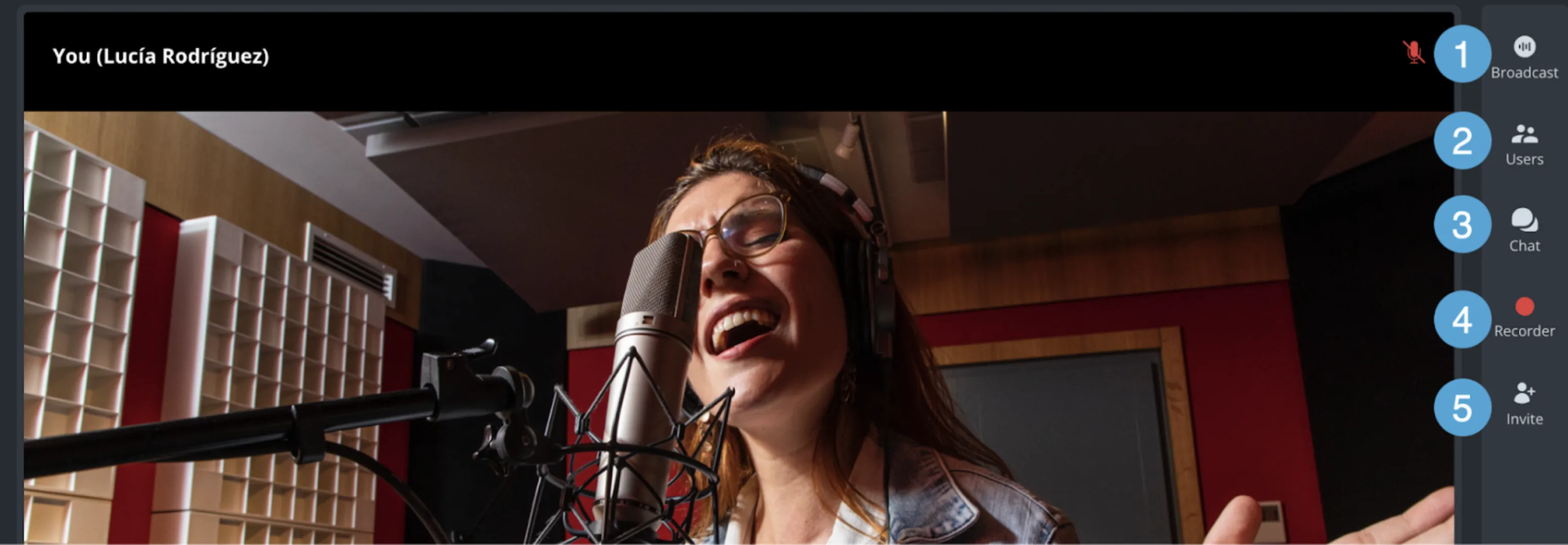
As a broadcaster, you will have the following tabs available:
-
Broadcast: this tab allows you to configure all your video/audio settings for your
broadcast session:
-
Broadcast settings:
- Broadcast levels: an indicator of the level coming from the broadcast device. Please note that the level will be gray until you click the “Start broadcast” button.
- Volume: a slider allowing you to adjust the volume of your input device.
-
Settings
- Input device: a dropdown to select your input device from a list of audio or virtual devices. The broadcast device is not the same as the input device, which you can select in the bottom menu of the Source-Nexus Gateway screen.
- Bandwidth: select a specific bandwidth based on your network’s quality. There are three options available in the dropdown (512kbps for high-quality connections, 256kbps and 128kbps).
- Video input: a toggle allowing you to turn on/off a video input for your broadcast. By default, it will be off.
- Screen source: a dropdown with any video sources available on your machine.
- Start/Stop Broadcast: when you are ready to start broadcasting your content, clicking “Start Broadcast” will make the content available to your users. Once the broadcast is active, you will see a “Stop Broadcast” button instead.
-
Broadcast settings:
- Users: this tab will allow you to send messages to other session participants during the broadcast. The participants list section will list all participants, including those that do not have their cameras on. You can also mute individual participants or kick them out of the session.
- Chat: this tab allows you to send messages to participants during your live session.
- Recorder: the new recorder feature expands on the current recording feature with additional options. See section “Enhanced Recorder Feature” for the full details.
-
Invite participants: this tab allows you to share your room link and send it to one or
multiple participants.
- Your room link: a unique URL for your Source-Nexus Gateway session, including your username.
- Invite people: the invite section allows you to include 4 user emails at a time.
- Message: a custom message for your viewers.
- Send Invites: clicking the button will immediately send your viewers an email with your Source-Nexus Gateway session and a link to join it. They will not need a passkey when joining.
As a viewer, you will see the Users, Chat and Recorder tabs only.
At the bottom of the Source-Nexus Gateway window, you will see controls that are similar to the ones in the live version:
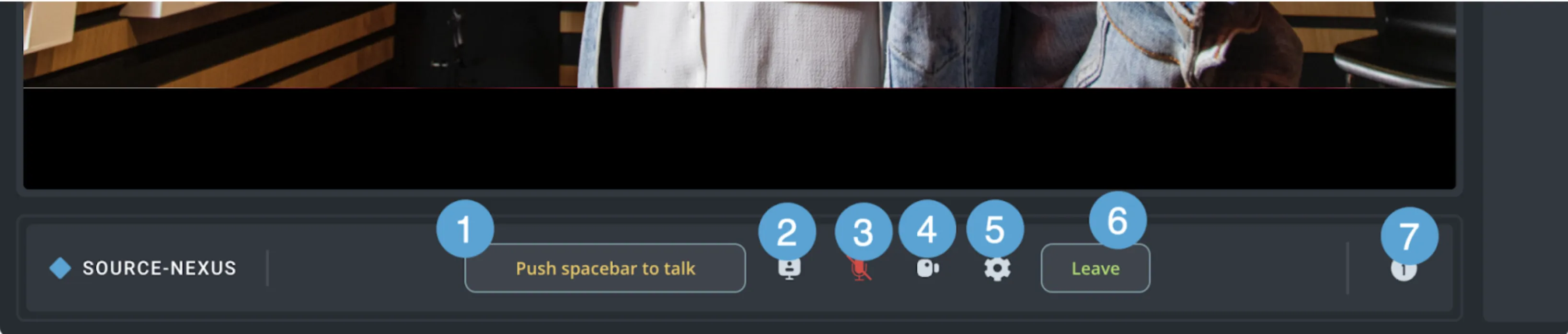
- Push spacebar to talk: a talkback tool to control your output during the session.
- Share screen: a sharing button to share your entire screen, a tab, or a window. Unlike the live version, you will not see the option to select a video device. You can find this option in the broadcast tab.
- Input device selection: a button that opens up a selection menu with all your audio devices.
- Camera on/off: a button that allows you to quickly turn your camera on or off for other participants to see you. You can change your camera source with the option (5) menu.
- Chat settings: a button that will open all your Audio, Video and General settings. You can find a complete list of host and viewer settings here.
- Leave button: clicking this button will remove you from the call. If you are the host, all remaining participants will see a message saying the session is no longer active.
- Host information: this pop-up will include the host’s name and profile information if they have chosen to share it publicly.
6. Enhanced Recorder Feature
The first Labs version of Source-Nexus Gateway includes an enhanced Recorder version available for all broadcasters. The feature can be accessed through the Recorder tab in the right-hand side panel:
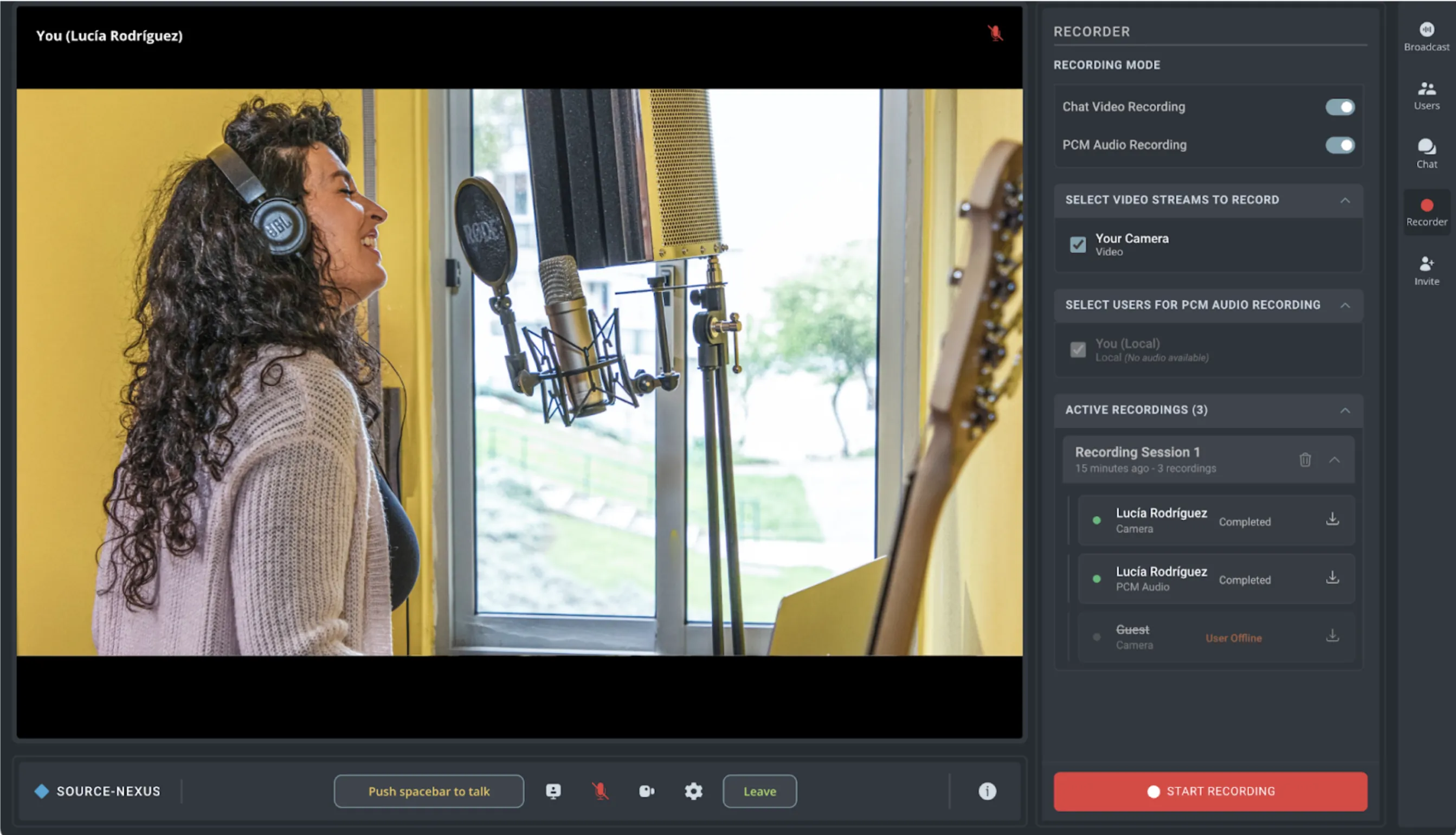
As a host, you will see the following menus and controls:
-
Recording Mode:
- Chat Video Recording: this toggle enables or disables the option to record video for all participants in the meeting. You can later select specific video streams to record - this setting will enable the option as a whole.
- PCM Audio Recording: this toggle enables or disables uncompressed PCM audio (highest quality) recording for all meeting participants.
-
Select Video Streams to Record: this section of the configuration menu allows you to
select the individual video streams you want to record. You can choose to start and stop the recording
as many times as needed during your broadcast, so you might want to check/uncheck any participants, as
needed.
- Your Camera.
- Any other participants’ cameras. You will see as many participants as there are on the call who have their cameras turned on.
-
Select Users for PCM Audio Recording: as with the video stream above, this section will
allow you to select the individual audio streams you want to record.
- You (Local)
- Any other participants on the broadcast.
-
Active Recordings (if applicable). In this area, you will see any video or audio
recordings you have enabled for a specific broadcasting session.
- Recording Session #
- <Your_Name> - Camera: your own camera.
- <Your_Name> - PCM Audio.
- Guests' camera/audio as defined in the settings above.
- Available actions
- Stop recording: this option will completely stop recording the person(s) you have selected for the duration of the broadcasting session. You cannot resume recording.
- Pause upload: this option will momentarily pause a recording being uploaded. You might want to select it if you notice any network issues or you know your bandwidth might not be enough for all recordings.
- Restart upload: you can restart the upload if you notice the recording might not be getting uploaded and you want the upload to start from scratch again.
- Download button: this will download the video or audio that has been uploaded
- Delete button: this option will delete the recording session and all of the recordings (video and audio) in it.
- (in-menu) Delete recording: this will delete individual recordings. You will only see this option before it is completely uploaded to the server.
- The recordings in the “Active Recordings” area will be specific to each broadcasting session you host and are not saved from one session to another. We recommend that you download all relevant files before you leave the session.
- Recording Session #
- Restored Recordings (if applicable). In this area, you will find any video or audio recordings you have enabled in past sessions. Past recordings are preserved for 30 days in our Source Elements servers. These are only accessible to the host - guests can only directly access their own recordings.
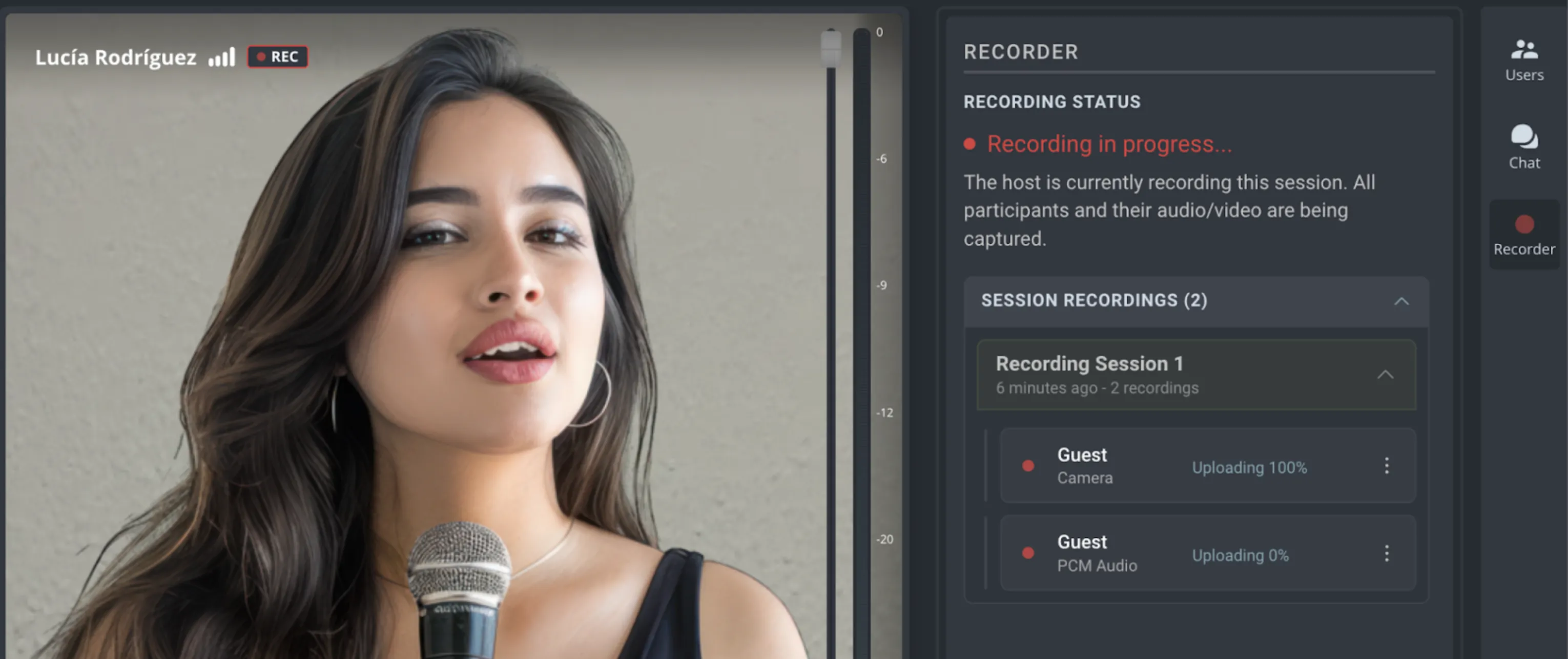
As a broadcast guest, you will see the following message on the Recorder window if the host has chosen to record your audio and/or video. You can stop the recording, pause or restart the upload again as needed.
7. Getting Support
Comprehensive documentation is available in this document. If your question is not answered, please send an emali to the support team at [email protected]. When you do so, please provide us with all the pertinent information required to resolve this issue. This includes, for example:
- Your computer type (Mac or Windows)
- Host and browser version.
- Network capabilities. If possible, please run the following speed test and send us a capture of your specs: https://www.speedtest.net/
- Mention that you are on the Labs version.
Known issues
- The video chat recording quality is limited to 720p, and 1080p for presentation/screen share. We plan to allow higher resolutions in later releases.
- Video and PCM audio files do not sync up properly. We recommend using one or the other at the moment.
- Continuous upload can cause issues for users with limited bandwidth - the effects of this will only be seen during the live connection and not in the recording. We recommend pausing the upload for affected users to avoid this, then resuming the upload once recording is complete.
- Media files' start times do not line up perfectly. Some manual adjustment will be needed when importing and editing in a video editor.
Table of Contents