Using an ASIO Driver on Windows
On Windows, Source-Connect 4 supports low-latency audio through ASIO (Audio Stream Input/Output) as of version 4.2.0. If your audio interface does not include a native ASIO driver, or if you will be using your built-in compiuter sound card, you can use a universal ASIO wrapper such as ASIO4ALL or FlexASIO. These drivers bridge standard Windows audio devices (WDM/KS) to ASIO, allowing you to achieve lower latency and improved performance compared to standard Windows audio modes like DirectSound or WASAPI (shared mode).
To get started, first install your preferred ASIO driver and restart Source-Connect 4 if it is already running. Below, you will find step-by-step instructions to install some of the most common ASIO drivers on your Windows machine.
IMPORTANT: The ASIO4ALL driver only suports the 44.1kHz sample rate in Source-Connect.
Installing FlexASIO
To download FlexASIO:
- Go to the official FlexASIO GitHub releases page.
- Download the latest stable version for Windows.
- Run the installer and complete the setup wizard.
Using a .toml configuration file
FlexASIO can be configured using a FlexASIO.toml configuration file if you need more control over how devices are selected or how audio is routed. This file allows you to manually specify input and output devices, choose the backend (such as WASAPI), set buffer sizes, define sample rates, and adjust latency-related settings. This is useful if you have multiple audio devices, want to force FlexASIO to use a specific interface, or need consistent behavior across systems.
The configuration file is not created automatically — you can create it yourself in your user profile folder (e.g., %USERPROFILE%) and only include the settings you want to override. For most users, however, FlexASIO works out of the box without any configuration file.
Using the GUI version of FlexASIO
There is a project on GitHub which provides a basic user interface for FlexASIO.
Troubleshooting FlexASIO
If you notice any issues when using FlexASIO, check out the FlexASIO documentation page: Why does FlexASIO fail to initialize?.
The most common issues are related to setting different sample rates for the same Input/Output device on your Windows audio settings, or different channel counts.
Installing ASIO4ALL
To download ASIO4ALL:
- Go to the official ASIO4ALL downloads page.
- Download the latest stable version for Windows.
- Run the installer and complete the setup wizard.
Setting your ASIO device on Source-Connect
On Source-Connect, click on the gears icon in the top right-hand corner of the screen and go to the "Default Connection Settings" menu. You will see a new "Driver" dropdown. Click on it and select "ASIO" first. After doing so, the Input and Output dropdowns will display all available audio interfaces supported by the ASIO driver.
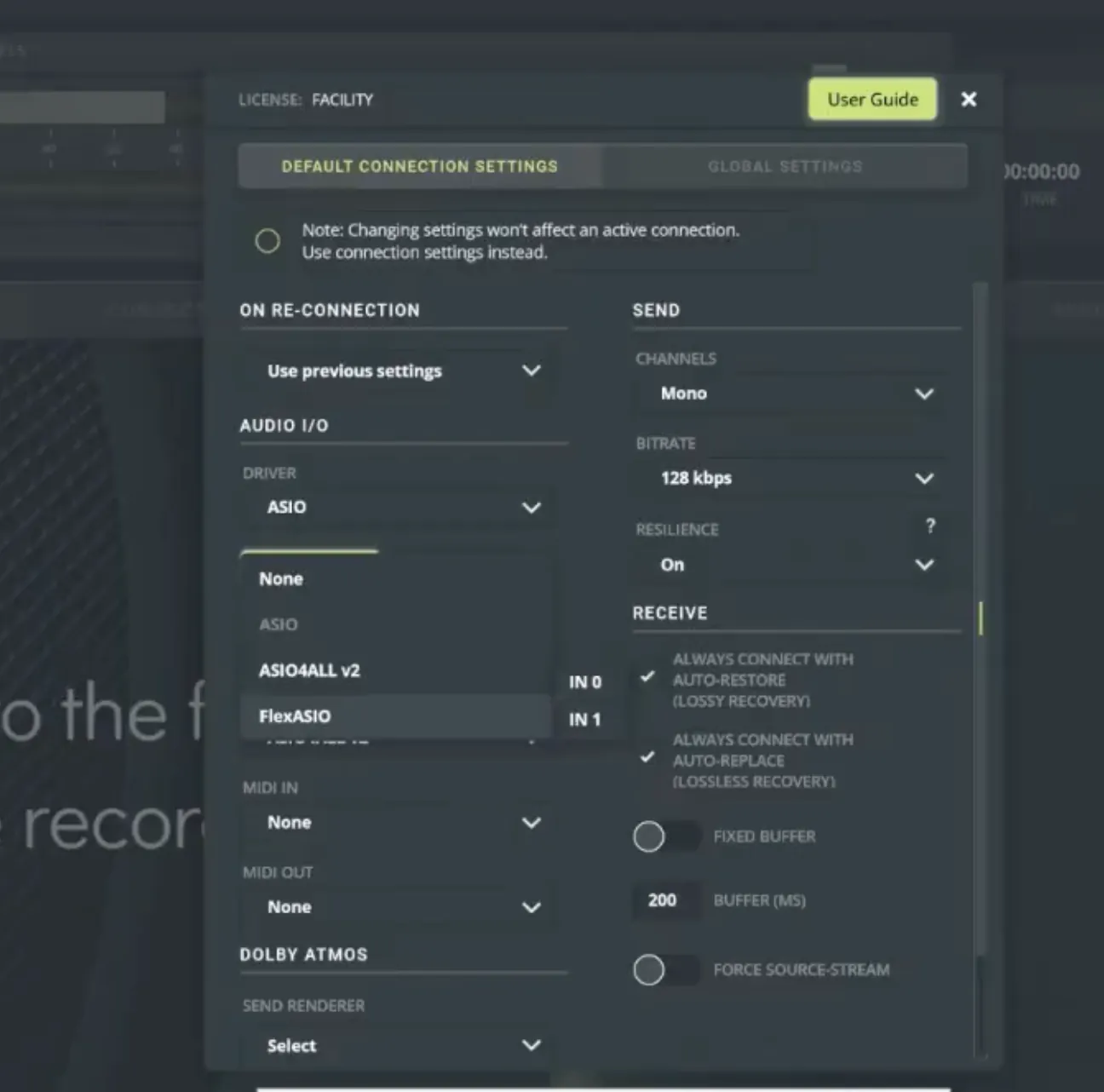
You will see a "Driver Settings" button shortcut - clicking it will open a window with the settings of your selected audio device.
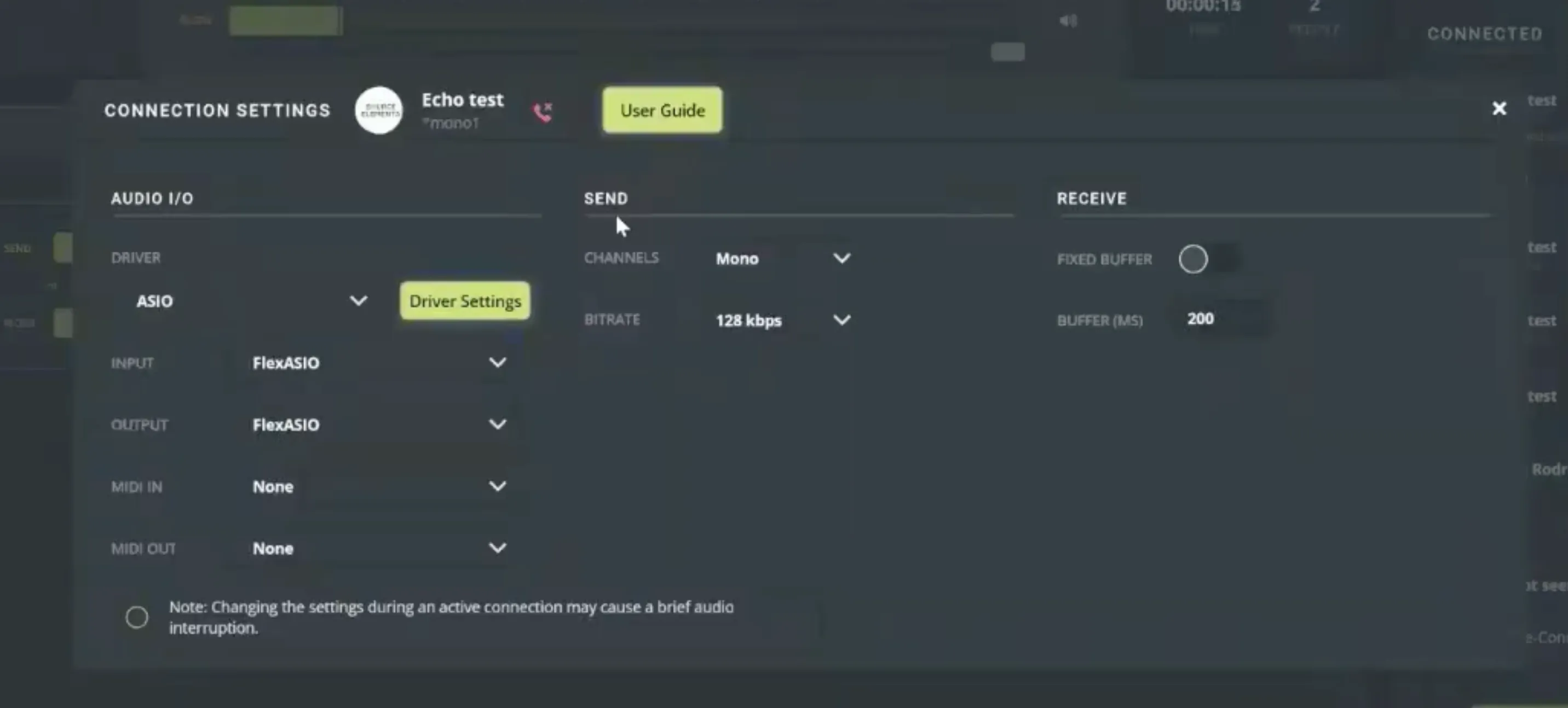
Source-Connect Studio and Facility users will also see the ASIO dropdown and I/O selector in the Connection Settings menu while on a call: