
Configuring your Settings in Source-Connect Talent
The “Settings” panel is available once you click the gears icon in the top right-corner of the screen. These settings are applied when you connect and changes are applied to any existing connections.
Users on the Studio/Facility version can change settings during ongoing calls using the connection settings panel in the “CONNECTIONS” tab.
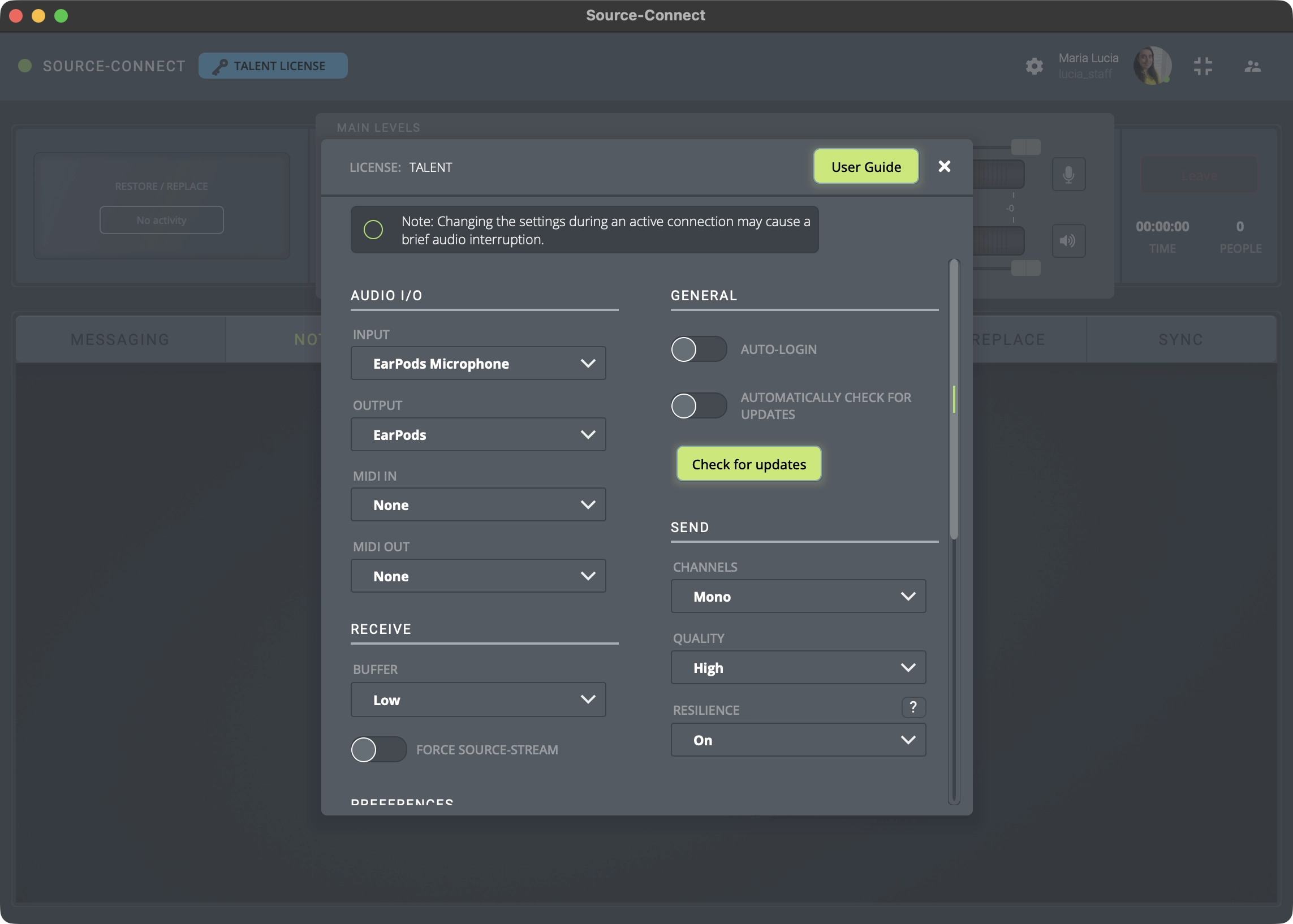
When you access the menu, there are four sets of settings available:
-
AUDIO I/O settings:
- Input: the hardware or virtual device being used to send sound.
- Output: the hardware or virtual device being used to receive sound.
- MIDI IN: the MIDI device being used to send sound.
- MIDI OUT: the MIDI device being used to receive sound.
-
Receive settings:
- Buffer: choose Low, Medium, or High to set the starting size of the adaptive buffer. The buffer holds received audio in reserve so late data can arrive before it is played, and it can grow automatically when network conditions worsen to help avoid dropouts. If you hear audio dropouts, select a higher buffer setting.
-
Force Source-Stream: if enabled, the Source-Stream service will take care of
routing the signal for you if you don't have the ability to establish a direct connection due to
firewall-related issues.
Please note that if your connection partner has opted to force or block Source-Stream and you have the opposite option selected, you will see error 208.
-
General: the general settings are related to the way the Source-Connect application
works and interacts with you.
- Auto-Login: when auto-login is checked, you are automatically logged in with your existing settings intact upon initializing Source-Connect. Each time you open a session with Source-Connect enabled, and auto-login checked, you will be automatically logged in and be ready to connect.
- Automatically check for updates: this will automatically keep the application updated for you. You can also manually check for updates by going to Source-Connect > Check for updates on the application menu.
- Check for updates: a button that allows you to check for updates manually.
-
Send settings:
- Channels: mono (single-channel audio), stereo (dual-channel audio), or up to 24 channels.
- Quality: by default, set to “High”, the quality of the send sound (Low, Medium, High, Best).
- Resilience: by default, will be “off”. Turning it on enables real-time error correction that eliminates the effects of packet loss and jitter.
-
Preferences
- Roster contact style: how you want your contacts to be displayed on your Source-Connect roster list. By default, this will be set to "Name and User ID". The available options are Name and User ID, Only Name and Only User ID.
- Help improve Source Elements: a slider, off by default, which allows Source Elements get data regarding application usage and errors. For more information, please visit our Privacy Policy.
-
(OPTIONAL) Network: these are optional settings for custom network configuration:
- Use port range: set up a port range for Source-Connect and test it out. Ports may be any even number between 1024 – 65534 and this number plus one