
How to get installation logs on macOS
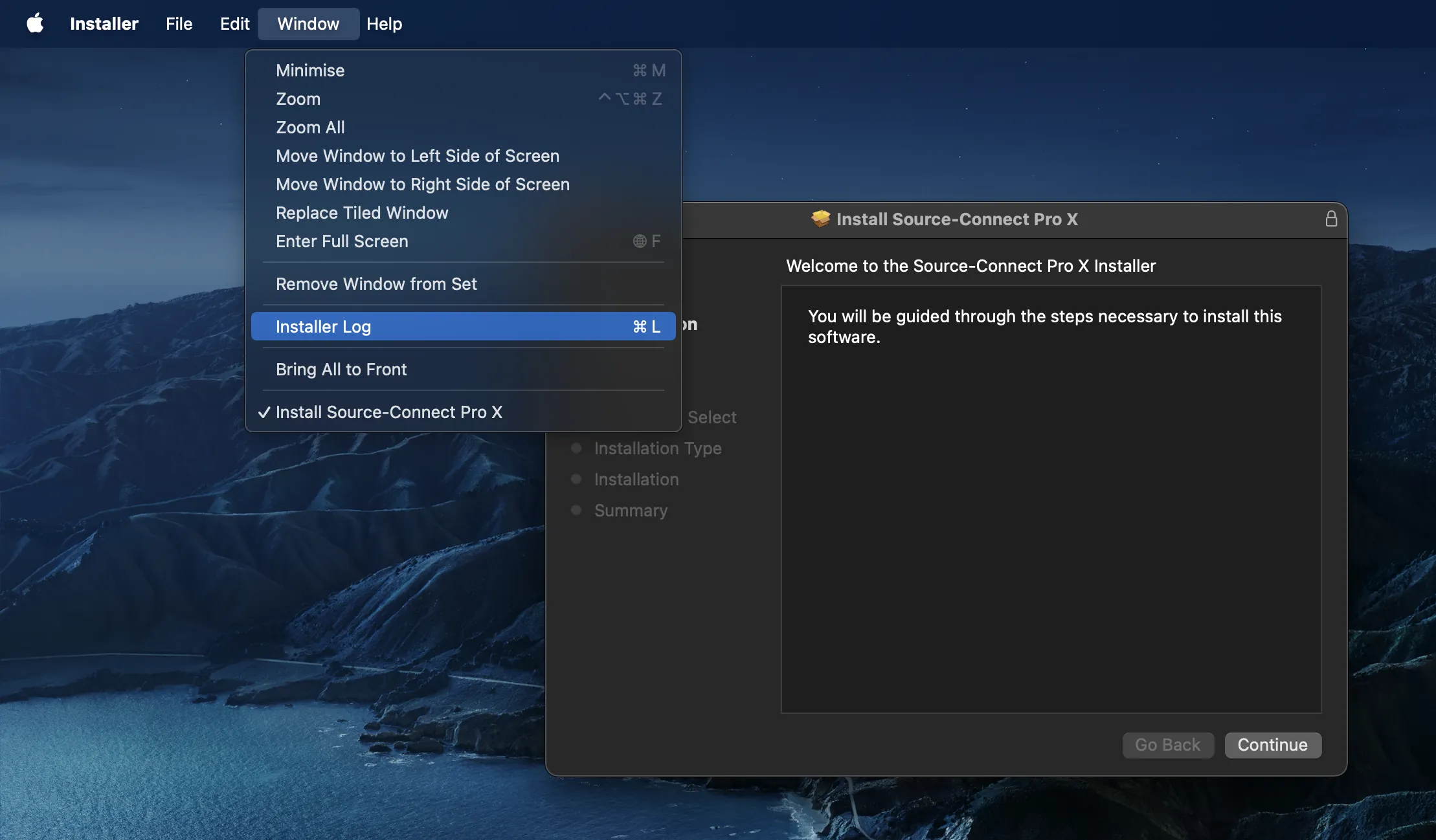
If you are installing your application on macOS, you can also enable Installer Logs by clicking on “Window” > “Installer Logs”:
In the new window that is opened, make sure to select “All Logs”:
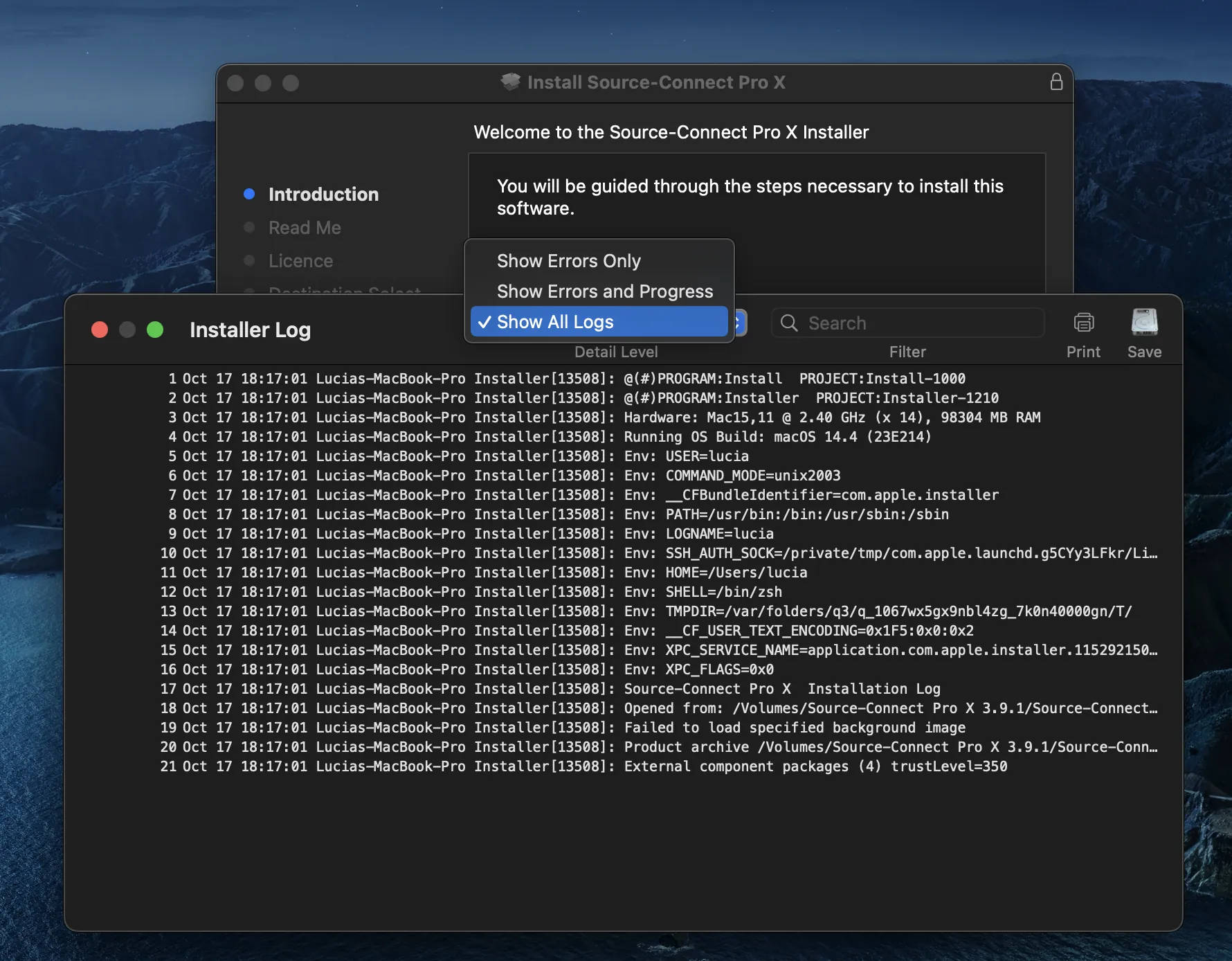
On the top right-hand corner, there is a “Save” button which allows you to save the logs to your computer.
How to get logs when installer quits or crashes
If the installer quits while you are installing the application, follow the steps below:
- Open the Console application, also found under Application/Utilities/Console.app
- Click on Log Reports on the left menu.
- Find the Install.log in these files.
- Click to open.
- At the top right, click on Reveal.
- Share this file with Source Elements support.
If you are having any issues with a Source Elements installer, make sure to send those to [email protected] to get help.
Table of Contents